
Modifying a Recorded Transaction
In the Cash Drawer system, the ability to modify a recorded transaction depends on the user’s role and permissions.
Each transaction, transfer, or exchange is automatically:
- 📅 Dated
- 👤 Linked to the user who created it
Editing a saved transaction always requires a valid PIN code.
User Permissions & PIN Requirements
By default:
Owners & Operators with Management Permission
-
Can edit transactions
-
Must use the PIN code found under:
Property Settings → Security Settings
-
⚠️ This PIN should only be used by the account owner.
Other Operators
- Can record transactions
- Cannot edit saved transactions without a temporary PIN issued by the owner
How to Edit a Transaction
Follow these steps to modify a recorded transaction:
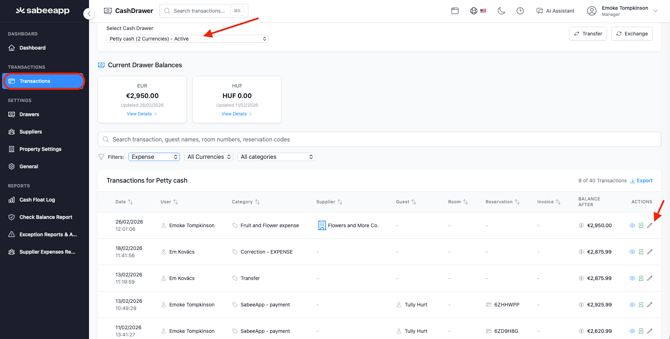
- Go to the Transactions menu.
- Select the Drawer the transaction belongs to.
- Locate the transaction you want to edit.
- Click the ✏️ Pencil icon next to the transaction.
Cash Drawer will display an “Authorization Required” message prompting you to enter a valid PIN.
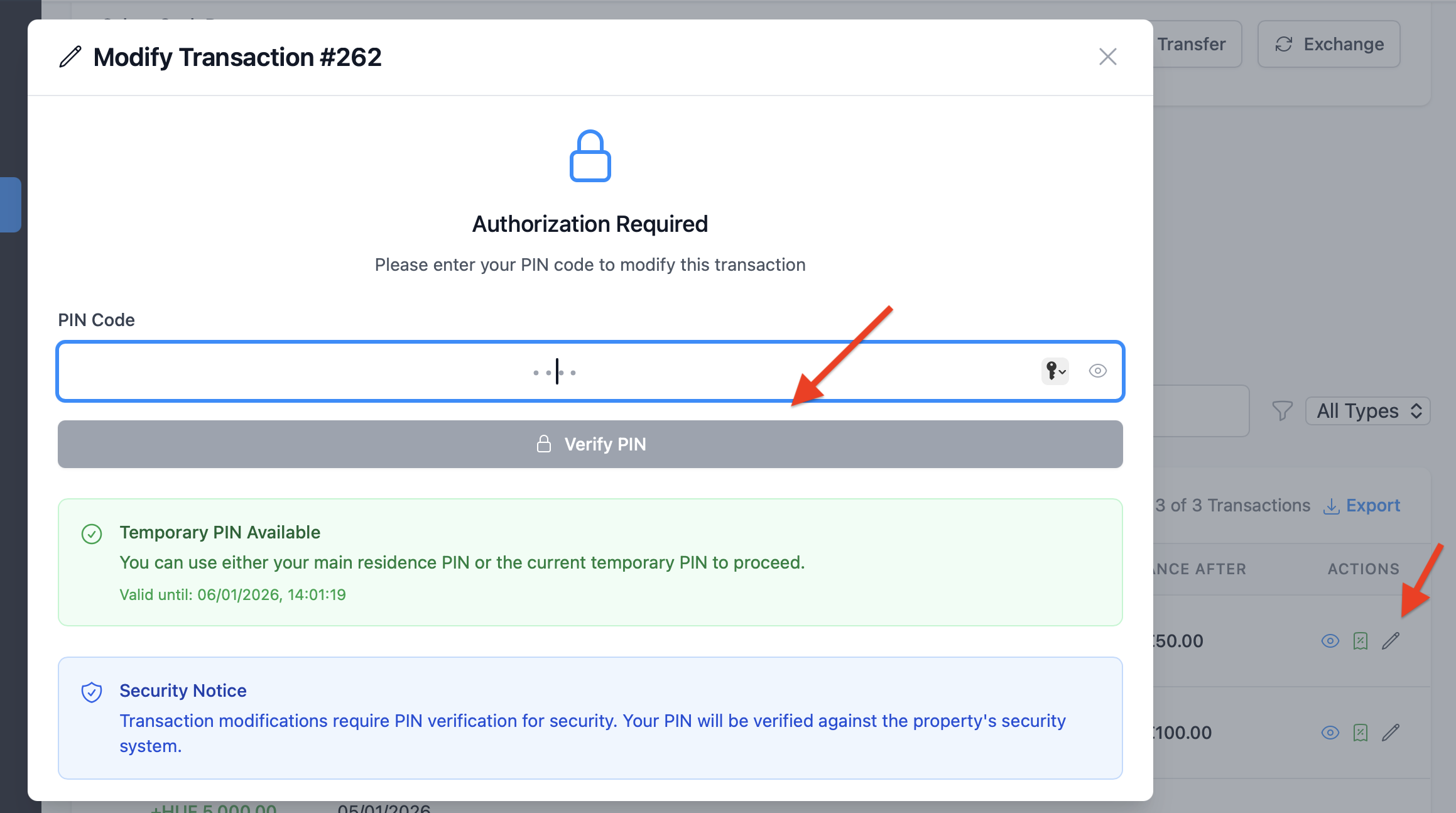
After entering:
- The Owner PIN, or
- A valid Temporary Access PIN
You can proceed with the modification.
5. Click Save to confirm your changes.Deleting Transactions
❗ Transactions cannot be deleted in the Cash Drawer.
If a mistake was made, you have two options:
- Edit the original transaction (if you have the required PIN), or
- Record a balancing transaction to offset the mistake
This ensures a transparent and traceable cash flow history.
Important: Deleting Cash Payments in SabeeApp
Be careful when deleting cash payments in SabeeApp (either on the reservation page or during a storno invoice process).
⚠️ Deleting a cash payment in SabeeApp does NOT delete the corresponding transaction in the Cash Drawer.
Instead of deleting the payment, you should record a modifying (balancing) payment in SabeeApp. This adjustment will automatically sync with the Cash Drawer.
Example
A €110 cash payment was recorded in SabeeApp, but after recording it, you realise the actual received amount was €100.
❌ Do NOT:
-
Delete the €110 payment
-
Add a new €100 payment
→ This would result in €210 being recorded in the Cash Drawer.
✅ Instead:
- Leave the original €110 payment
- Add a -€10 modifying payment
This way:
- SabeeApp and the Cash Drawer remain aligned
- Your financial records stay accurate and traceable
For more information about how to generate PIN code for editing a transaction, please visit the User Roles and Permissions help article.