
🎥 Prefer a quick walkthrough?
Watch the step-by-step video guide.
Understanding Exchanges
Exchanges are used to convert money from one currency to another within the same cash drawer. They are designed for operations that handle multiple currencies and need to track conversions accurately.
Common Exchange Scenarios
- A guest exchanges one currency for another (for example, USD to EUR).
- You convert excess foreign currency into your primary currency.
- You adjust currency balances based on exchange rates.
- You consolidate multiple currencies within a single drawer.
How Exchanges Work
An exchange updates one drawer and two currency balances:
- From Currency: The currency being converted; its balance decreases.
- To Currency: The currency being received; its balance increases.
- Exchange Rate: The rate used to calculate the converted amount.
How to Create an Exchange
Step 1: Select the Source Drawer
- Go to "Transactions" section
- Select the drawer this exchange happens in
- Click "Exchange" as the transaction type

Alternatively: Go to Settings → Drawers and choose the drawer this exchange happens in and click “Exchange”
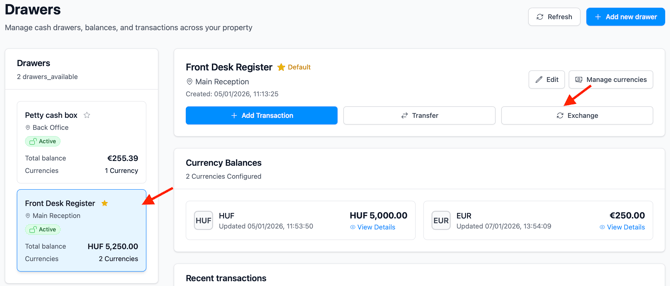
4. Continue with the form
Step 2: Enter Exchange Details
Provide the following information to complete the exchange:
From Currency (required): The currency you are converting from. The balance in this currency will decrease.
To Currency (required): The currency you are converting to. The balance in this currency will increase.
Note: The From and To currencies must be different.
Exchange Rate (required): The value of one unit of the From Currency in the To Currency. The exchange rate is saved with the transaction for reference and auditing.
Amount to Exchange (required): The amount you want to convert from the original currency. This amount cannot exceed the available balance in that currency.
Amount to Receive (calculated): Automatically calculated using the exchange rate and the amount entered. In some cases, this amount can be adjusted if the applied rate differs.
Description (optional): Add a short note explaining the reason for the exchange.
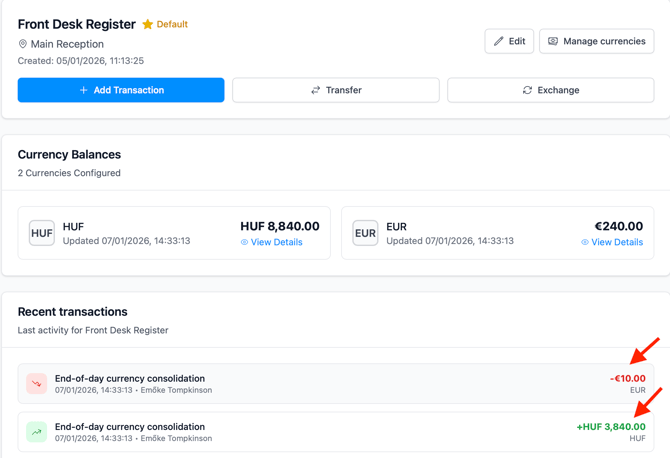
Examples: “Guest currency exchange at front desk” or “End-of-day currency consolidation.”
Step 3: Verify and Complete the Exchange
Before saving, review the details:
- Confirm the From and To currencies are different.
- Ensure the exchange amount does not exceed the available balance.
- Verify the exchange rate is correct.
- Check the calculated amount to receive.
Click Complete Exchange to finish. Both currency balances update immediately.
Important Exchange Rules
- Currency Support - Both currencies must be supported in the drawer
- Sufficient Funds - Cannot exchange more than available balance
- Different Currencies - Cannot exchange to the same currency
- Market Rate - Should reflect current exchange rate
- Recorded Rate - Rate is saved with transaction for audit