
SabeeApp Go is the mobile companion to SabeeApp PMS. It gives front-desk staff quick access to daily arrivals, guest records, and ID scanning — directly from their phone.
This guide walks you through signing in, navigating the app for the first time, and understanding what information the app shows.
Before You Begin
You will need:
- Your SabeeApp login email and password
- An authenticator app (such as Google Authenticator or Authy) already set up for your account
- A smartphone or tablet (iOS or Android) with the SabeeApp Go app installed, or access via a supported browser as a Progressive Web App (PWA)
Step 1: Sign In
Open SabeeApp Go on your device. You will see the Login screen.
- Enter your SabeeApp email address in the Email field.
- Enter your password in the Password field.
- Tap Sign in.
The app verifies your credentials. If either field is empty, Sign in does nothing — fill in both before tapping.
Login error? If you see "The email or password you entered is incorrect", double-check both fields and try again. Password resets are handled in the SabeeApp PMS, not in this app.
Step 2: Enter Your Two-Factor Code
After your password is accepted, SabeeApp Go requires a second verification step to protect your guests' data.
- Open your authenticator app on your phone.
- Find the six-digit code for your SabeeApp account.
- Enter the six digits on the MFA screen. The code is split into two groups of three boxes.
The code submits automatically as soon as the sixth digit is entered — there is no button to tap. If the code is incorrect, all boxes clear and you can enter a new code immediately.
Tip: You can paste a six-digit code directly into the first box and all boxes will fill at once.
Step 3: Choose Your Property
After authentication, you are asked to select the property you want to manage. If you manage only one property, it appears alone in the list.
- Tap the property name to select it.
- The app loads your property's reservations and opens the Home screen.
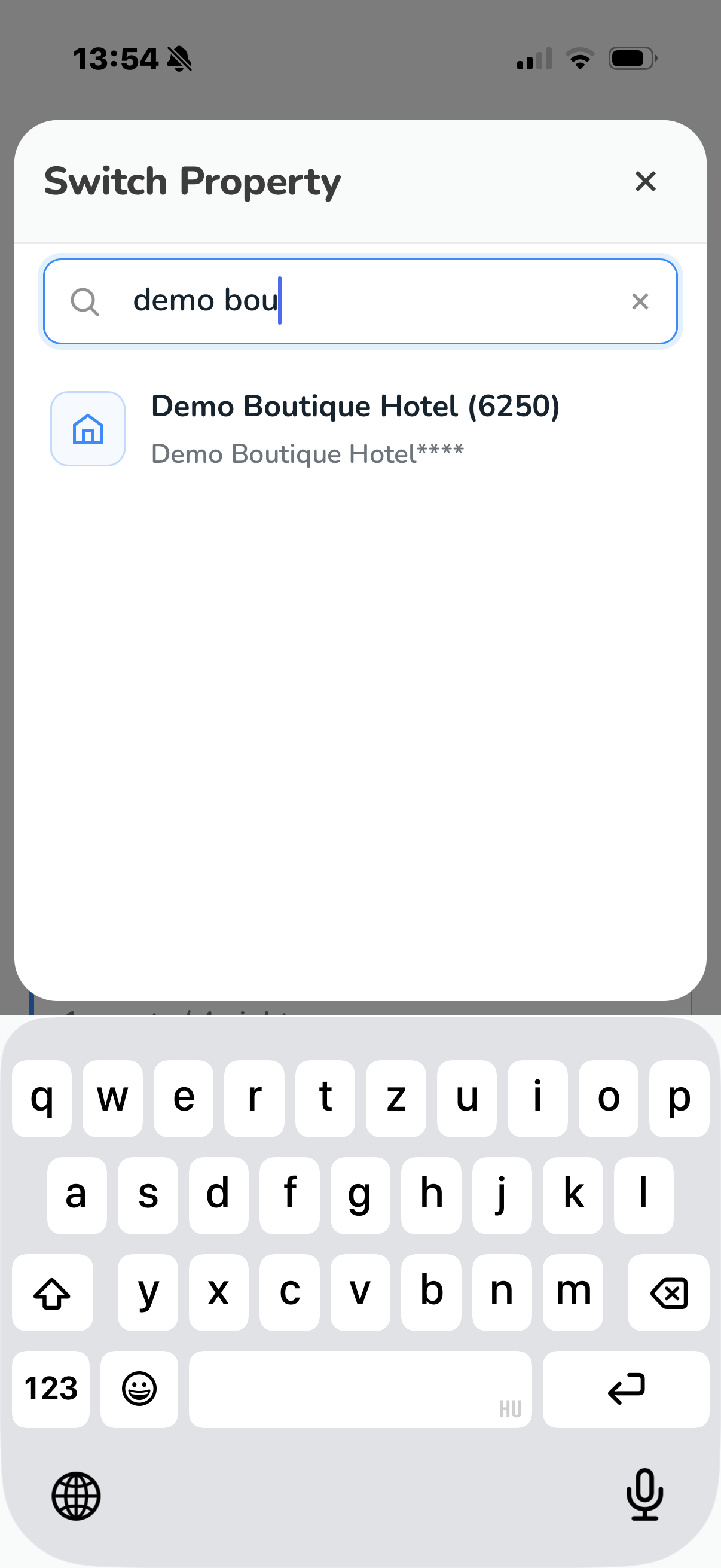
If you manage multiple properties, type part of a name into the filter field to narrow the list.
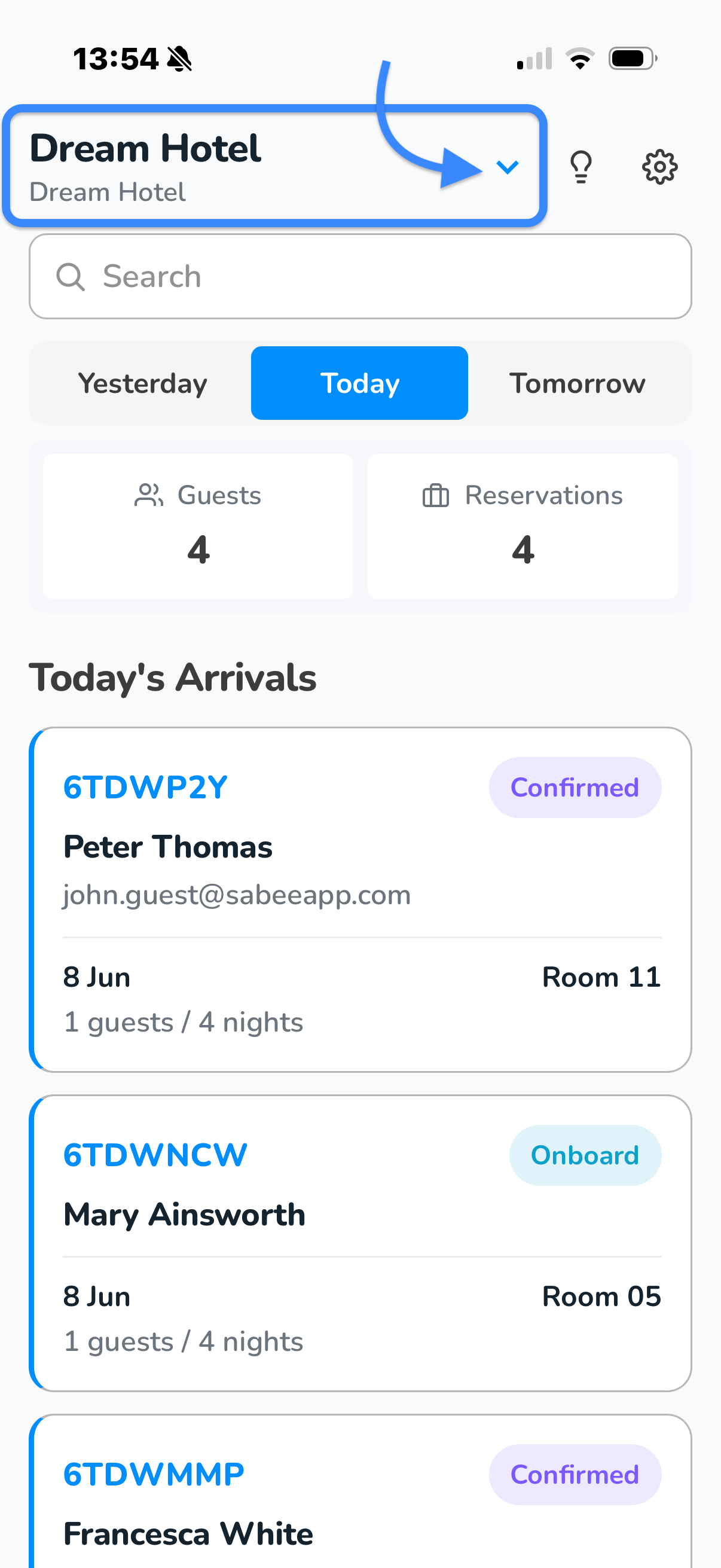
Need to switch later? You can change the active property at any time from the Home screen — tap the property name in the top header.
The Home Screen (Arrivals)
Home is your daily working view. It shows the guests arriving at your property, focused on one day at a time.
Day Tabs
Three tabs at the top of the screen let you move between days:
- Yesterday — guests who arrived the previous day
- Today — today's arrivals (selected by default when you open the app)
- Tomorrow — guests arriving the next day
Summary Cards
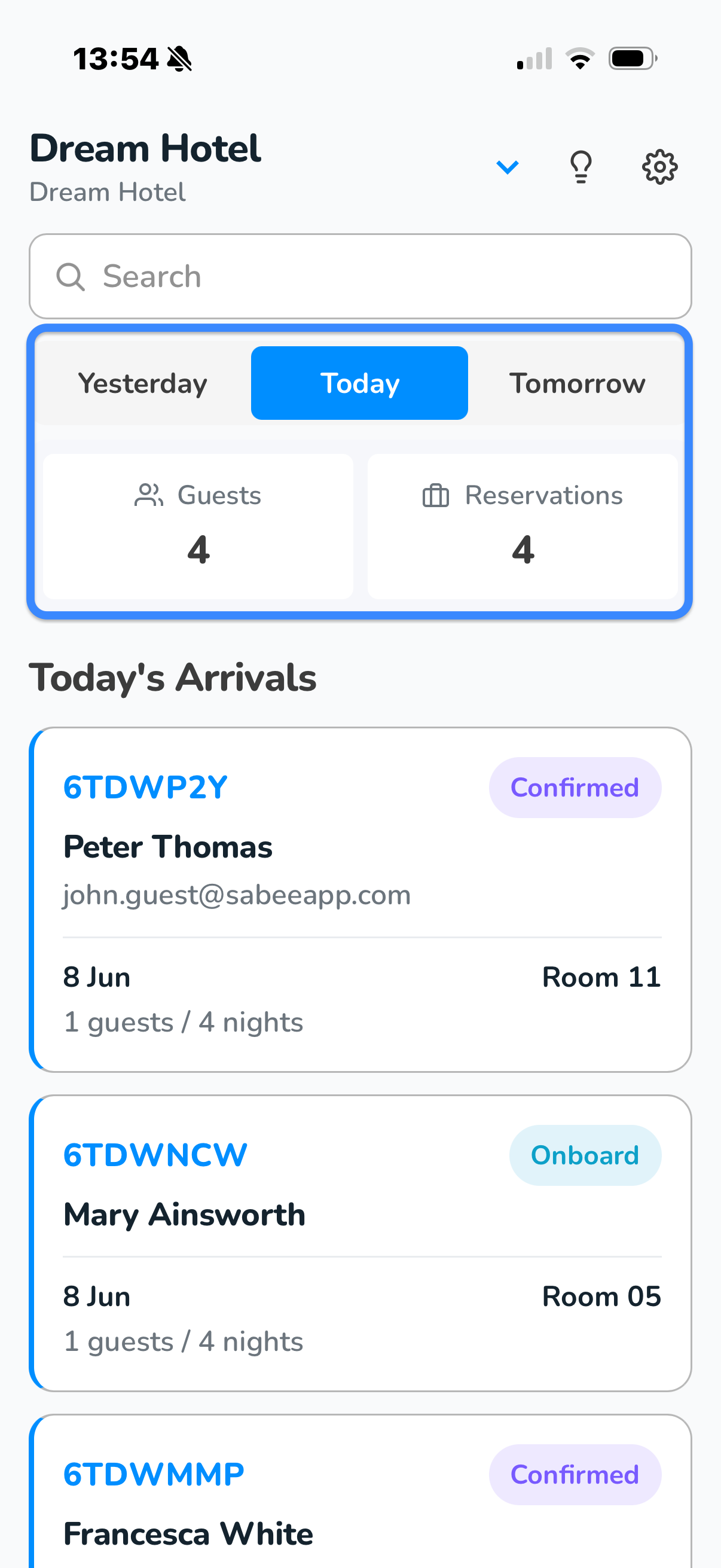
Two cards below the tabs show totals for the selected day:
- Guests — the total number of guests across all arriving reservations
- Reservations — the number of reservations arriving that day
Reservation List
Each reservation appears as a card showing the reservation code, status, guest name, email, dates, and room. Tap any card to open the full reservation detail.
Cancelled and No-show reservations are displayed dimmed so they are easy to distinguish from active arrivals.
Searching for a Reservation
To find a specific guest or booking, tap the search field at the top of the Home screen.
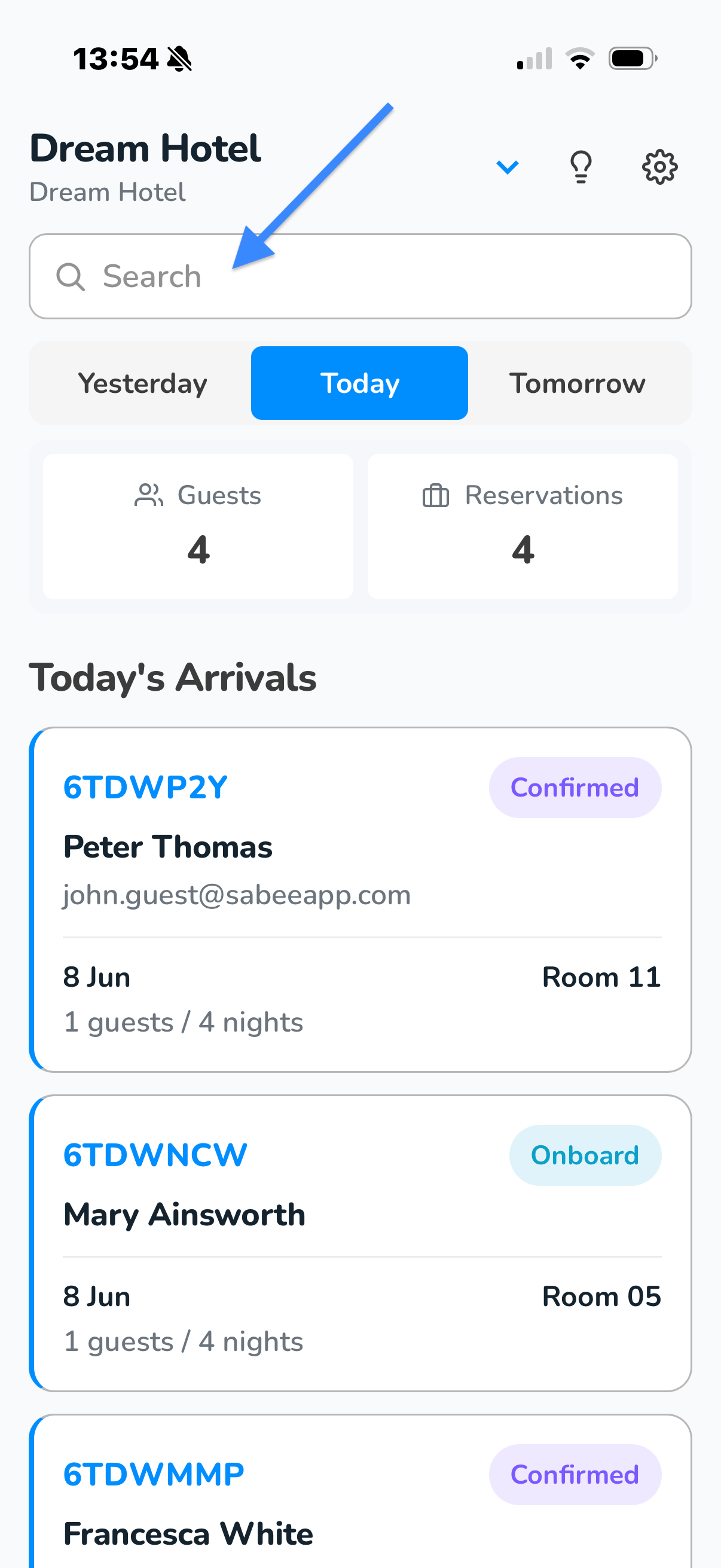
- Type at least three characters of the reservation code, guest name, or email address.
- Results appear automatically as you type.
- Tap a result to open the reservation.
The Search screen remembers your last ten searches for quick access on return visits.
Understanding the Data Window
Important — what the app can show
SabeeApp Go loads reservations dated from 14 days ago to 14 days from today. This four-week window is the only data available in the Home tabs and Search. A reservation that checked out three weeks ago, or one arriving next month, is not loaded and cannot be found here. Use the SabeeApp PMS for full booking history.
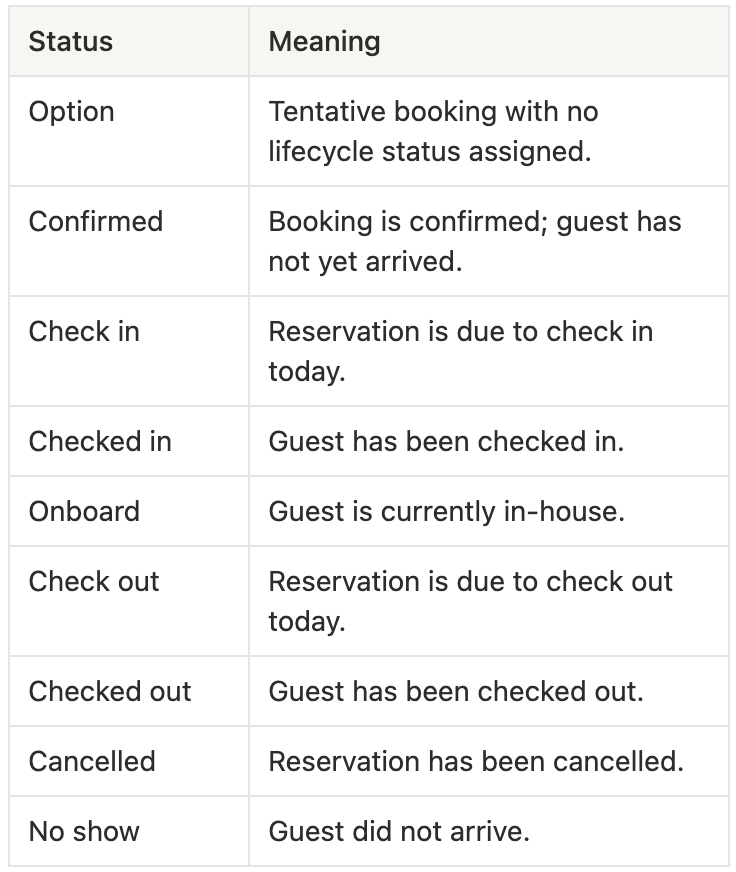
Reservation Statuses
Every reservation shows a coloured status pill. These statuses reflect the booking state in the PMS and are read-only in SabeeApp Go — they cannot be changed from the app.
Settings and Language
Tap the settings icon (top right of Home) to access Settings. Here you can:
- Change the interface language
- View your signed-in account name and email
- Log out of the app
The language can also be changed on the Login screen before signing in. Your choice is remembered between sessions.
What SabeeApp Go Does Not Cover
SabeeApp Go is a focused front-desk tool. The following actions must be performed in the SabeeApp PMS:
- Checking guests in or out
- Changing a reservation's status
- Account management, billing, and rate configuration
- Searching reservations outside the 14-day window
Next Steps
Once you are signed in and comfortable with the Home screen, explore these common tasks:
- Opening a reservation and reviewing guest details — see Viewing and Editing Guest Details
- Scanning a guest's ID document — see How to Scan a Guest ID Document with SabeeApp Go