
What Are Transaction Categories?
Transaction Categories are classification labels that help you organise and understand your cash flow. Every transaction you record—whether income or expense—must be assigned a category.
Categories make it easier to answer questions such as:
- How much did I spend on food this month?
- What are my main sources of income?
- Which expense types are increasing over time?
Using categories consistently is essential for accurate reporting and analysis.
Types of Transaction Categories
Each transaction belongs to one of two category types:
Income Categories
Used for transactions where you receive money, for example:
- Room charges
- Food and beverage sales
Expense Categories
Used for transactions where you spend money, for example:
- Supplies
- Maintenance
- Any money going out
Important:
Transactions must be classified correctly as Income or Expense. Incorrect classification will affect financial reports.
System Default Categories
CashDrawer includes a set of predefined categories to help you get started.
Default Income Categories
- Transfer
- Exchange
- Guest Deposit
- SabeeApp – Payment
Default Expense Categories
- Transfer
- Exchange
- Guest Withdrawal
- Cash Drop
- SabeeApp – Payment
You can use these default categories as they are, or create your own custom categories if needed.
Creating a New Category
Permissions:
Only Account Owners can create new transaction categories. Operators do not have permission to add or manage categories.
Step 1: Open Transaction Categories
- Go to Settings → General → Transaction Categories
- Review the existing categories
- Click Add Category
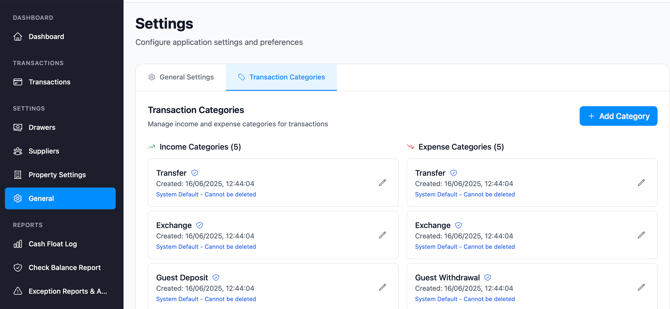
Step 2: Add Category Information
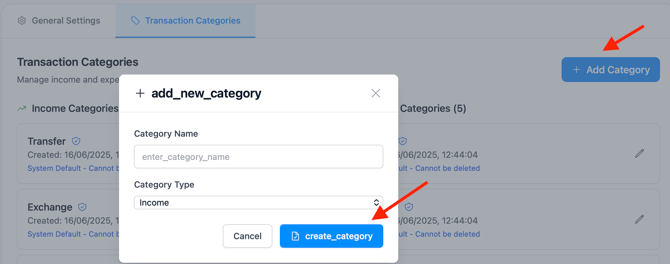
- Click the Add Category (+) button
- Enter a Category Name
- Select the Category Type (Income or Expense)
Step 3: Save the Category
- Review the details carefully
- Click Create Category
- A confirmation message will appear
- The new category will be added to the list
Viewing All Categories
To view all available transaction categories, navigate to
Settings → General → Transaction Categories.
From this screen, you can:
- See all Income and Expense categories
- Identify system default categories
- Identify custom categories created by your team
Categories are grouped by type to make them easy to scan.
Editing a Category
To edit a category:
- Locate the category in the list
- Click the pencil icon
- Update the category name
- Click Save
Changes apply immediately and affect future transactions.
Note:
In most cases, the category type (Income or Expense) cannot be changed after creation.
Deleting a Category
To delete a category:
- Locate the category in the list
- Click the trash icon
Important rules:
- Only custom categories can be deleted
- System default categories cannot be removed
- A category can be deleted if it is linked to transactions, the transaction will change automatically to Unknown category
If the category is already in use, you must:
- Reassign existing transactions to a different category, or
- Leave the category unused for future transactions
Using Categories in Transactions
When Adding a Transaction
- Select the transaction type (Income or Expense)
- Choose a category from the Category dropdown
- Only categories matching the transaction type will appear
- Select the most appropriate category
- Use the description field for additional details if needed
If no suitable category exists, create a new category first.
Changing a Transaction’s Category
If a transaction was assigned to the wrong category:
-
Open the transaction from the Transactions list
-
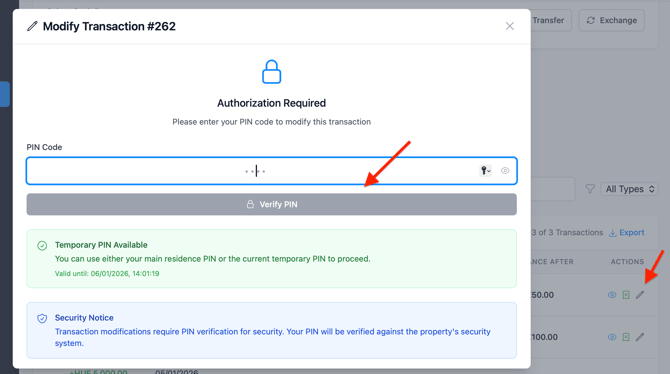
Click the pencil icon
-
Enter the temporary PIN code provided by the Account Owner
-
Click Verify PIN
-
Update the category
-
Click Update Transaction
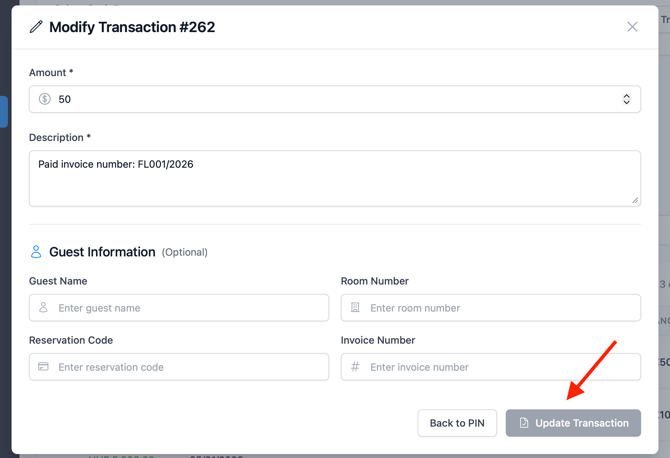
The transaction will now be correctly categorised.
Troubleshooting
Cannot create a category with my chosen name
- The name may already exist
- A similar system default category may be present
- Try using a slightly different or more specific name
Selected the wrong category type
- Category type cannot be changed after creation
- You must delete and recreate the category
- Reassign any existing transactions first
Staff are using incorrect categories
- Review category usage regularly
- Provide a simple reference guide
- Train new staff on category selection
- Monitor transactions for consistency
Too many categories
- Merge or delete rarely used categories
- Rename categories to be more descriptive
- Keep the structure simple and consistent
Recommended Category Setup Process
- Review system default categories
- Decide what financial data you need to track
- Create custom categories where required
- Document category usage for staff
- Train team members
- Use categories consistently
- Review and refine categories quarterly