🎥 Prefer a quick walkthrough?
Watch the step-by-step video guide.
What is a Cash Drawer?
In Cash Drawer, a drawer is a digital representation of a physical location where you store and manage cash. It could be:
- A front desk register
- A hotel bar or restaurant register
- A safe or vault
- A petty cash box
- Any other location where cash is kept
Each cash drawer tracks money in one or more currencies and maintains a complete history of all transactions.
Setting Up Your First Cash Drawer
Step 1: Access the Drawers Section
- Look for "Drawers" in the main navigation menu, under Settings
- Click on it to open the Cash Drawers page
You'll see a list of existing drawers (if any) and an "Add new drawer" button.
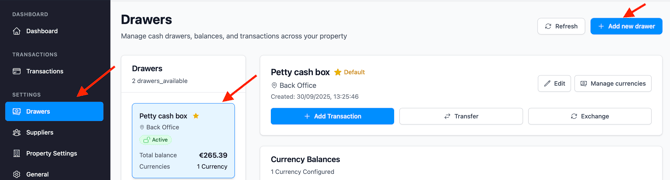
Step 2: Click the Add New Drawer Button
- Look for the button labeled "Add New Drawer" or the plus icon (+)
- Click it to open the Add New Drawer form
- A modal dialog will appear with fields to fill in

Step 3: Enter Drawer Information
Provide the following details:
Drawer Name (Required)
A clear name to identify the drawer (e.g. Front Desk Register, Bar Till 1). Use at least 2 characters and avoid vague names like Cash or Drawer 1.
Location (Required)
Where the drawer is physically located (e.g. Main Bar, Back Office). Use at least 2 characters and be specific.
Status (Required)
The drawer’s current state:
- Active – In use and ready for transactions
- Inactive – Not in use but kept for records
- Maintenance – Temporarily unavailable due to audit or maintenance
You can update the status at any time.
Step 4: (Optional) Enable Safe Mode
Safe Mode is an optional setting you can enable when creating or editing a drawer. With the safe mode on Operators can add transactions but cannot view balances or transaction history.
What happens when Safe Mode is enabled?
For users who are not the drawer owner (operators):
- A lock icon (amber) appears next to the drawer name
- A Safe Mode badge is shown in the drawer header
- The balance table is hidden behind a blurred overlay
- The transaction history is also hidden
- All action buttons are disabled
For owners and managers:
The drawer behaves normally — all data and actions remain fully accessible.
Step 5: Save the Form
- Review the information you've entered for accuracy
- Click the "Create Drawer" button
- You'll see a confirmation message
- The new drawer will appear in your Drawers list
Important: Set Up Currencies and Initial Balances
After creating a drawer, you must:
- Add all currencies used in the drawer
- Enter the starting balance for each currency based on the cash physically in the drawer
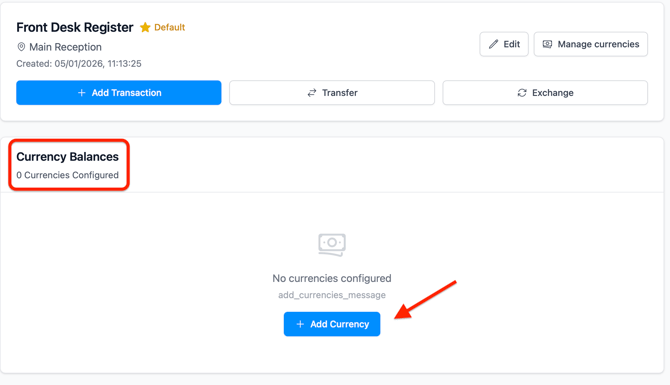
Adding New Currencies:
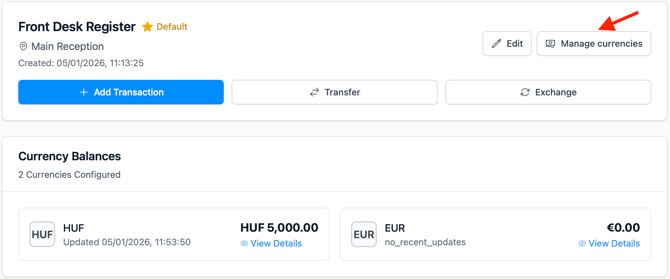
- To add a currency click on “+Add Currency”
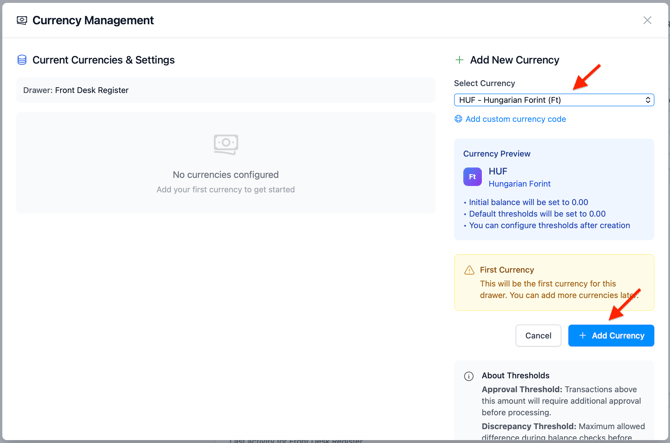
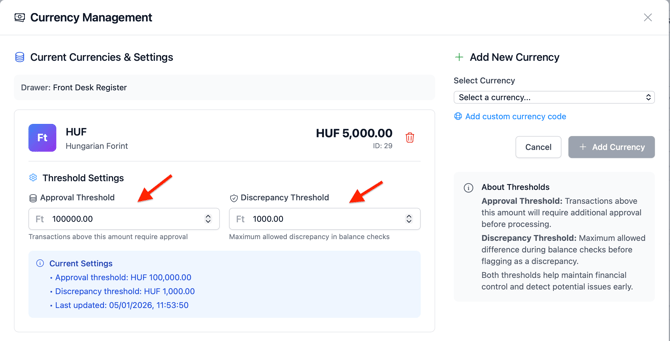
3. Once you added a currency define the Approval Threshold and the Discrepancy Threshold, by clicking on Manage Currencies:
Working with Multiple Currencies
Many drawers may need to track multiple currencies:
-
Setting Up Currencies:
- Add as many currencies as you want to manage in your drawer
-
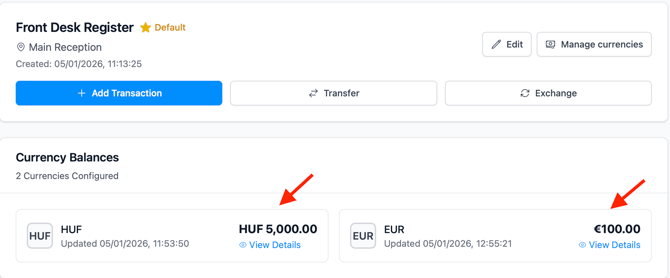
- Each currency appears as a separate balance line
- You can see the total in each currency at a glance
Viewing Multiple Currencies:
-
Converting Between Currencies:
- Use the Exchange feature to convert between currencies
- Record the exchange rate used
- Creates an audit trail of currency conversions
Enter the Starting Balance for Each Currency
You can add a starting balance in two ways. The most common method is to record it as an income transaction for the money already in the physical drawer. To do this, you first need to create an Opening Balance transaction category.
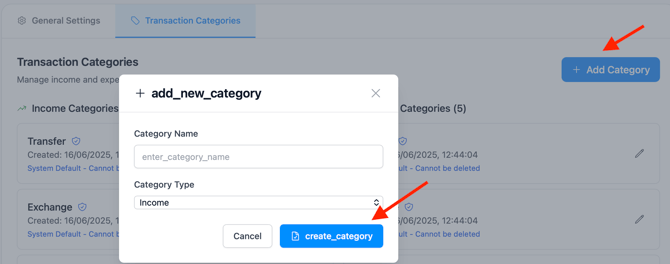
Step 1: Create an Opening Balance Category
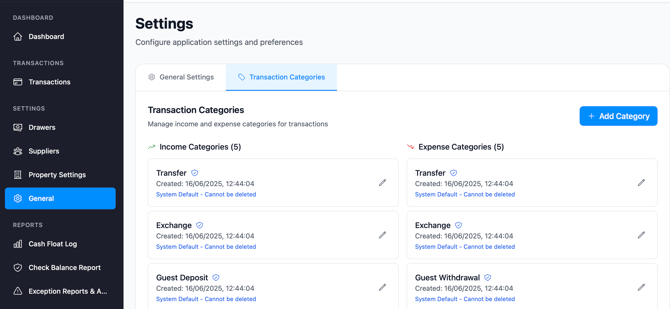
- Go to Settings → General → Transaction Categories.
- Click Add Category (plus icon
+). - Fill in the category details:
- Name:
Opening Balance(or something descriptive) - Type:
Income
- Name:
- Click Create Category.
- You will see a confirmation, and the category will appear in your list.
Step 2: Add an Opening Balance Transaction
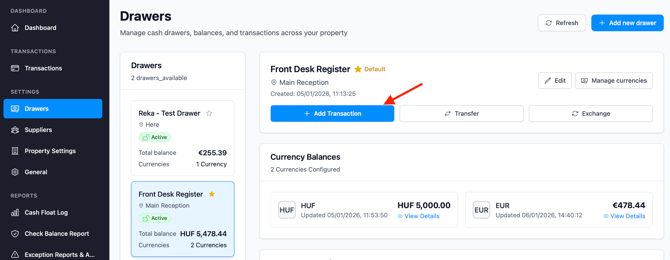
- Navigate to the Transactions page, or go through Settings → Drawer. Both methods allow you to add a transaction.
- Select the drawer where you want to record the starting balance.
- Click Add Transaction (plus icon
+).
In the Transaction section:

In the Drawer section:
Step 3: Enter Transaction Details
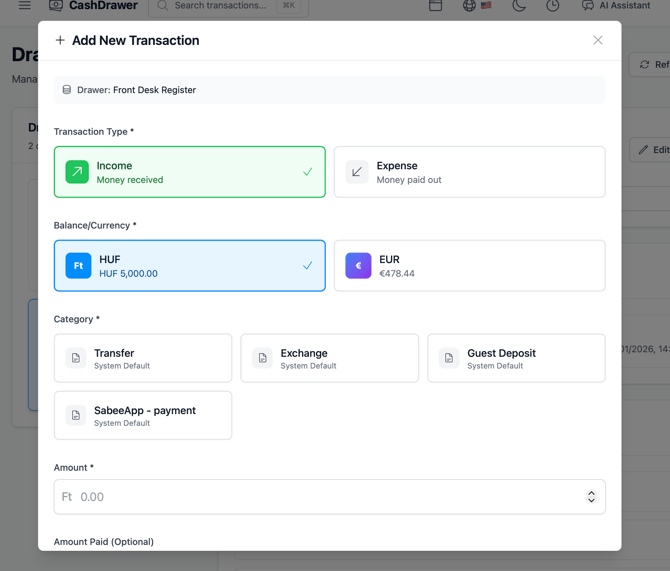
For an income transaction, fill in the following:
-
Currency (required) – Select the currency you would like to add the balance to.
-
Category (required) – Select
Opening Balance. -
Amount (required) – Enter the starting cash amount (must be > 0).
-
Description (required) – Add a clear note for reference or audits.
-
Guest Information (optional) – Leave empty.
-
Supplier (optional) – Leave empty.
Step 4: Review and Save
- Verify all information is correct, including amount, currency, and drawer.
- Click Save Transaction.
- A confirmation message will appear, and the transaction will be listed in your drawer.
Bring Cash Over from Another Drawer
You can also set a starting balance by transferring cash from another drawer already recorded in Cash Drawer. This is done by creating a Transfer.
Step 1: Start a New Transfer
-
Select the Source Drawer
-
Go to Settings → Drawers and choose the drawer where cash will be taken out.
-
This drawer’s balance will decrease automatically.
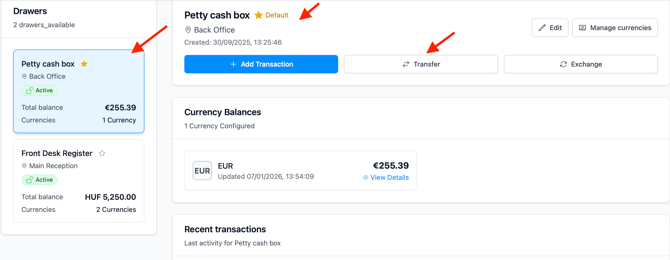
Alternatively: From the Dashboard, click Add Transaction, then select the drawer to withdraw cash from.

-
-
Click Transfer to begin moving cash to another drawer.
Step 2: Enter Transfer Details
- Currency – Select the currency being transferred. Both drawers must support this currency.
- Destination Drawer – Select the drawer that will receive the cash.
- Amount – Enter the cash amount to transfer.
- Description – Optional but recommended. Example: "Opening cash transfer"
Step 3: Verify and Complete
- Confirm the From and To drawers are correct.
- Verify the amount and currency.
- Click Complete Transfer.
- Both drawer balances update immediately.
Viewing Drawer Details
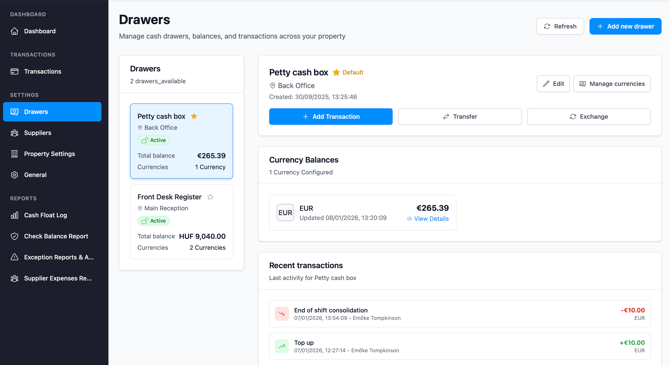
- Go to Settings → Drawers to see a list of your drawers.
- Drawers are displayed as tiles on the left side of the screen.
- Click a drawer tile to view its details, including:
-
Current balances in each currency
-
Recent transactions
-
Drawer status (Active, Inactive, Maintenance)
-
Location information
-
Editing a Drawer
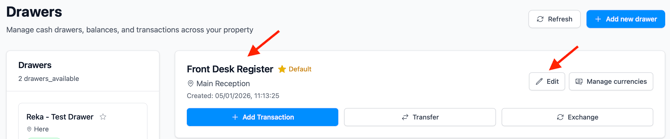
- Click on the drawer you want to edit
- Look for the "Edit" button or pencil icon
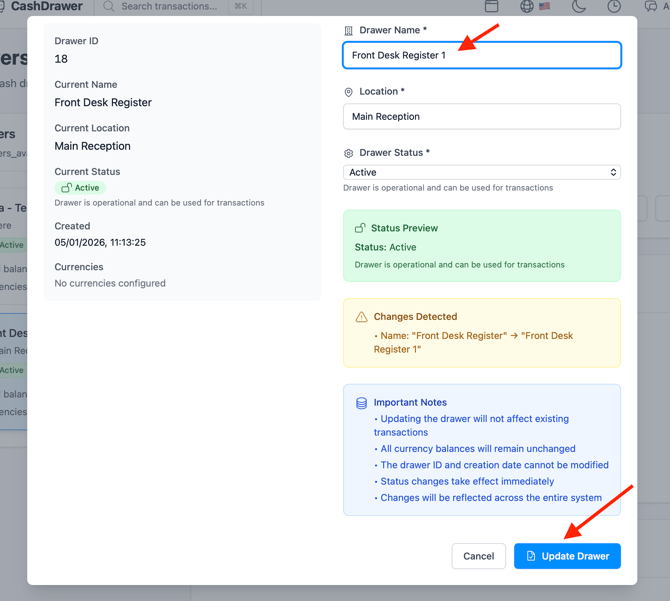
- Modify the drawer name, location, or status
- Click "Update Drawer" to confirm changes
- The changes take effect immediately
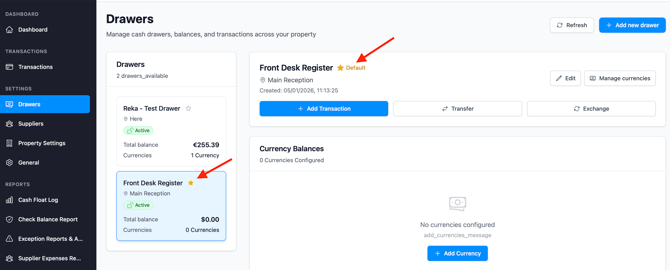
Setting a Drawer as Default Drawer
If you have multiple drawers, you can set one as your default:
- Find the drawer you want to be default
- Click the star icon next to the drawer name
- This drawer will be selected by default when you add new transactions
- You can still change which drawer you're using for any specific transaction