
Saving Services from Booking.com Using Service Name Tags
This guide explains how to automatically add services (e.g. cleaning fee, city tax) from your Booking.com reservations into SabeeApp.
🧭 Before you start
In Booking.com, extra charges (like cleaning fees or taxes) are set up in the Property → VAT/Tax/Charges section.
These services can be automatically added to reservations in SabeeApp — as long as they are set up correctly.
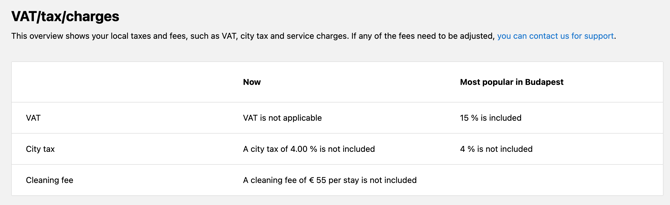
⚙️ Step 1: Configuring the Service in SabeeApp
To automatically add services from Booking.com reservations based on XML data, follow these steps:
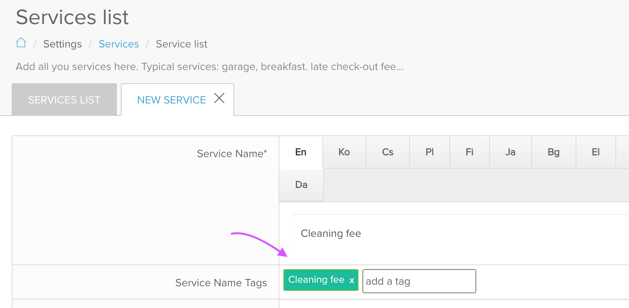
- Navigate to Settings / Services List / New Service page in SabeeApp.
- Add your service (e.g. Cleaning fee)
- In the Service Name Tags field:
-
- Enter the exact name used by Booking.com
- The wording must match exactly
👉 Example:
If Booking.com uses Cleaning fee, you must enter Cleaning fee (not Cleaning Fee or Cleaning costs) -
🔗 Step 2: How the automatic connection works
When a reservation arrives from Booking.com:
- SabeeApp checks if the reservation contains a matching service name
- If a match is found → the service is automatically added
- The price will be taken directly from Booking.com
💡 Important: Set the service type correctly
To avoid incorrect pricing or duplicate charges, make sure the service settings match in both systems:
1. Service included in room price (not shown separately)
- Booking.com: Included
- SabeeApp: Included
2. Service included in room price (shown in folio)
- Booking.com: Included
- SabeeApp: Derived
3. Service NOT included in room price
- Booking.com: Not included
- SabeeApp: Not included
⚠️ If the service is mandatory but not included:
- Set it as mandatory only in Booking.com
- Do NOT mark it as compulsory in SabeeApp
- This prevents the service from being added twice
💰 How pricing works
The service price is always taken from Booking.com.
Example:
- Room A cleaning fee: €35
- Room B cleaning fee: €20
➡️ SabeeApp will apply the correct amount based on the reservation.
⚠️ Important: Service name must match exactly
If the service name in SabeeApp does not match what Booking.com sends:
- The service will not be added automatically
🌍 Language settings – why it matters
Booking.com sends service names to SabeeApp in the language set for your Booking.com account. This can affect automation if:
- You have multiple Booking.com accounts, each using a different language
- You are expecting a service name to match SabeeApp exactly, but the Booking.com account uses a different language, therefore the information sent to SabeeApp is in different language.
How to handle this
- Check the communication language in your Booking.com account:
- Go to your Profile → Account settings → Preferred language
- This is the language that will be used in the service names sent to SabeeApp
- Match the service name in SabeeApp to the actual name sent by Booking.com in that language
-
Be aware, that exceptions of the name tag sent by booking.com can differ from the VAT /Tax menu. For example in Hungarian:
- In the VAT/Tax menu:
Takarítási díj - In the reservation details (what is sent to SabeeApp):
Takarítás díja
You must use the reservation details wording (
Takarítás díja) in SabeeApp for the automatic service to work.
Key takeaway
- Other languages may have similar discrepancies between the VAT/Tax menu and reservation details.
- Always check both sections in Booking.com for the exact wording that will be sent to SabeeApp. If unsure, please reach out to your account manager and ask them to check in the XML.
Tip: If you manage multiple accounts in different languages, make sure to add service name tags in SabeeApp for each language to ensure automation works consistently.
✅ Summary
To ensure services are added automatically:
- ✔ Create the service in SabeeApp
- ✔ Use the exact same name as Booking.com sends
- ✔ Match the service type (included / not included / derived)
- ✔ Be aware of language differences (especially for Hungarian)
By setting this up correctly, you can automate service handling, reduce manual work, and avoid pricing errors.
Example Configuration
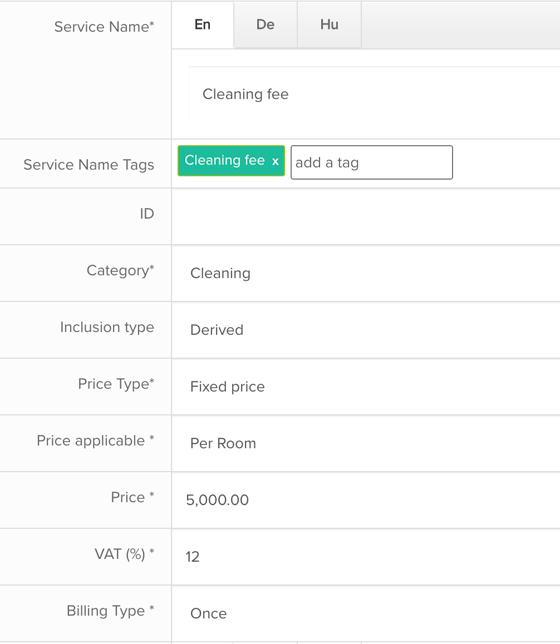
Here is an example of how to set up a Cleaning fee in SabeeApp:
- Create a new service with the following settings:
Reservation Example
Imagine that you receive a reservation from booking.com for two nights at a total price of 80,000 HUF. The Cleaning fee is set at 7,000 HUF in the booking.com Extranet for the relevant room type.
Result in SabeeApp:
- The Booked Price will be adjusted to 73,000 HUF.
- The Services section will display one service:
- A derived Cleaning fee with a price of 7,000 HUF.
- In the Folio:
- The nightly accommodation prices will be split into 36,500 HUF each.
- The first day will include a Cleaning fee item of 7,000 HUF.