
🎥 Prefer a quick walkthrough?
Watch the step-by-step video guide.
Reconciliation
Reconciliation is the process of comparing the cash recorded in the system with the physical cash on hand. It is used to identify discrepancies and confirm that drawer balances are correct.
What Reconciliation Compares
During reconciliation, you review:
- System Balance: The balance shown in Cash Drawer.
- Physical Count: The actual cash counted in the drawer.
- Difference: Any variance between the system balance and the physical count.
When to Reconcile
Reconciliation is typically performed:
- At the end of a shift or business day.
- During shift handovers.
- Before consolidating cash to a safe.
- When discrepancies are suspected.
How to Reconcile a Drawer
Step 1: Count the Physical Cash
Before using the system:
- Count all cash in the drawer.
- If the drawer contains multiple currencies, separate them by currency.
- Calculate the total amount for each currency.
Step 2: Check the System Balance in Cash Drawer
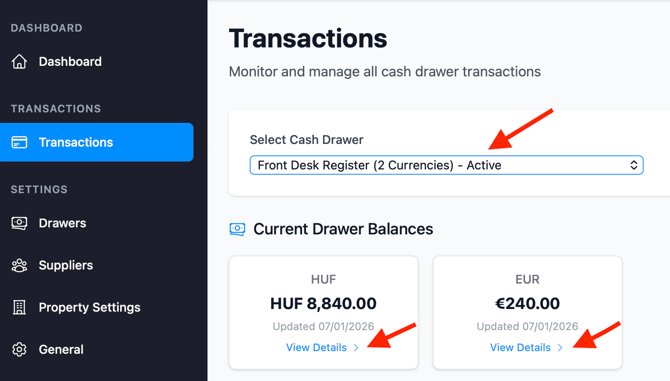
- Go to the Transactions section.
- Select the drawer you just counted.
- Review the Current Drawer Balances, displayed as tiles for each currency.
- Click View details on the currency you want to reconcile.
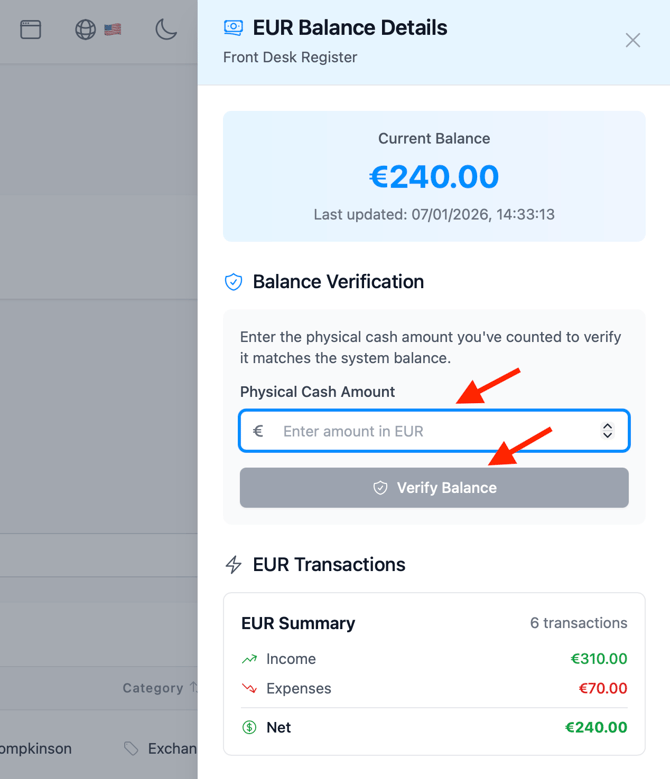
An off-canvas window opens showing the Currency Balance Details.
5. Enter the physical cash total you counted for that currency.
6. Click Verify Balance to complete the reconciliation for that currency.
Step 3: Compare and Verify
Compare the physical cash count with the system balance.
If the balances match:
- A confirmation message indicates that the balance is correct.
- A Balance Check entry is added to the Transactions list, confirming that at that time there were no discrepancies between the physical cash and the amount recorded in Cash Drawer.
If balances don’t match
If the physical cash in your drawer doesn’t match the system balance, a message will alert you. You have two options:
-
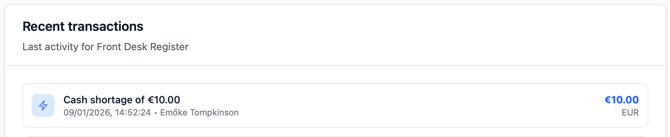
Ignore – Choose this if you want to leave the discrepancy unresolved for now and continue using the recorded balances. The system will reflect a minus or surplus based on the balance check.
-
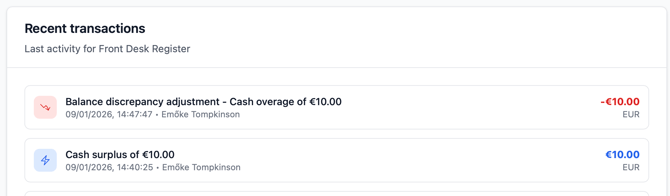
Log Discrepancy – Choose this to correct the mismatch by adding missing cash or removing surplus. A pop-up will appear with the discrepancy amount pre-filled and a comment like “Balance discrepancy adjustment – Cash overage.” Review the details and click Save Discrepancy to update the drawer balance. This action will create two entries in the transactions, which together bring the drawer back into balance:
Step 4: Investigate Discrepancies
If the physical cash and system balances don’t match, follow these steps:
1. Review Recent Transactions
- Check the transaction list for errors.
- Look for typos or incorrect amounts.
- Identify any missing transactions.
- Focus on the most recent entries.
2. Common Issues
- Transaction recorded with the wrong amount.
- Duplicate transaction entry.
- Transaction recorded in the wrong currency.
- Transaction not recorded at all.
- Rounding differences.
3. Correct the Problem
- Wrong amount: Edit the transaction.
- Missing transaction: Add it.
- Duplicate entry: Add another one to counterbalance it.
- Wrong currency: Update the currency.