
The Pénzszám Accounting Software marketplace item allows SabeeApp users to automatically export invoice and payment data in a format compatible with Pénzszám, using Google Drive as the delivery destination.
This integration helps automate daily accounting exports and reduces manual data handling.
Availability
The Pénzszám Accounting Software marketplace item is available for all SabeeApp accounts.
What does this integration do?
Once configured, SabeeApp will:
- Generate a daily CSV export of invoice and payment data
- Upload the export automatically to a Google Drive folder
- Ensure the file format matches Pénzszám’s requirements
How to connect to Pénzszám
To initiate the integration:
- Go to Settings
- Navigate to Marketplace
- Locate Pénzszám Accounting Software
- Click Initiate connection
Once the connection is initiated, you can proceed with the configuration steps described below.
Configuration overview
The marketplace configuration consists of three main parts:
1. Google Drive connection
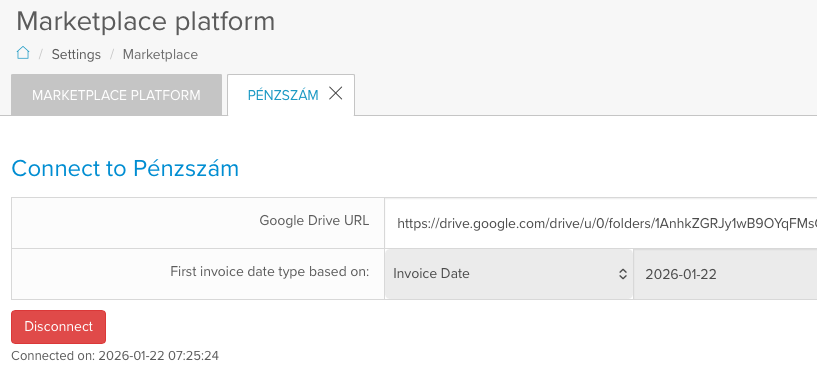
To enable automatic exports, you must configure a Google Drive folder as the export destination.
Requirements:
-
The destination must be a Google Drive folder
-
You must share the folder with the following Google service account:
googlesheetexport@capable-droplet-436507-c4.iam.gserviceaccount.com -
The folder’s URL must be provided during configuration
Once access is granted, SabeeApp will automatically upload export files to this folder.
2. Mapping invoice items and payment methods
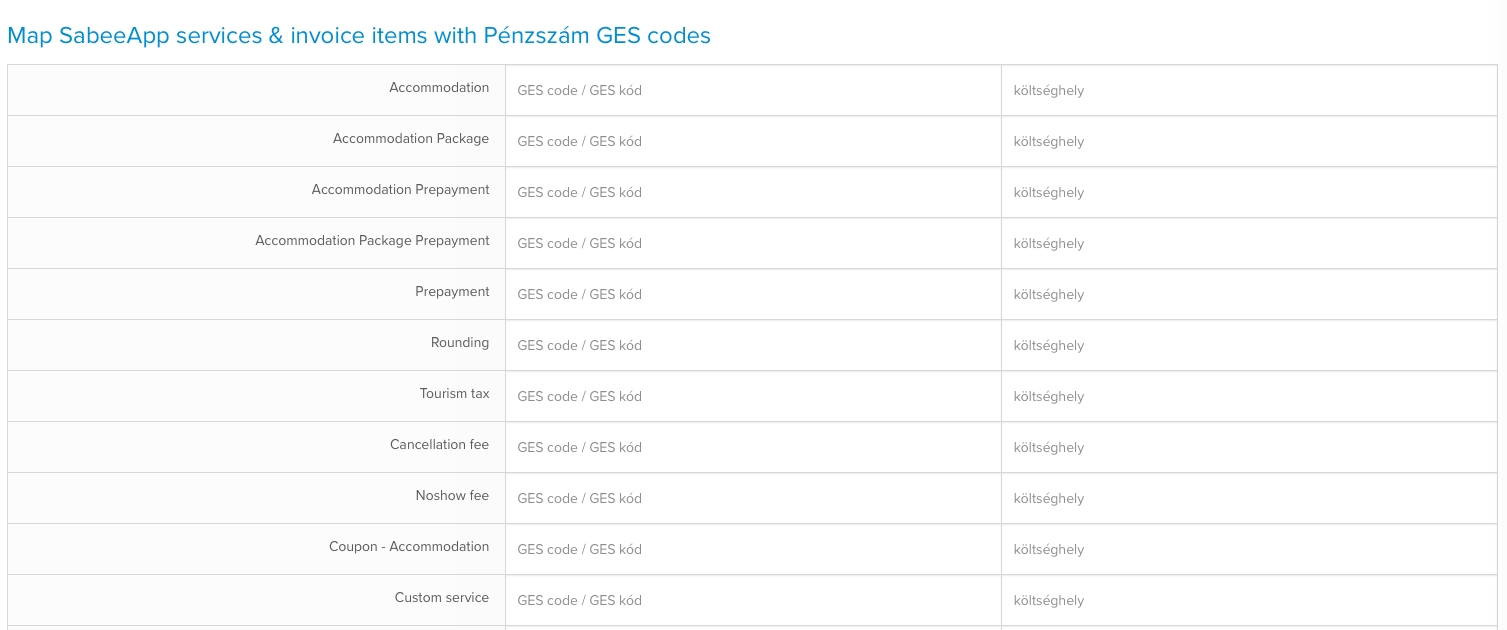
To ensure accurate accounting in Pénzszám, every invoice item and payment method must be mapped to both a GES code and a cost center.
What this means
- GES code → Tells Pénzszám what type of revenue or transaction this is.
- Example: Accommodation → GES_101, City Tax → GES_202, Spa Service → GES_303
- Cost center → Indicates where the revenue or payment was collected.
- Example: Front Desk → POS_1, Online Booking → POS_Online, Restaurant → POS_Restaurant
Invoice mapping
For each invoice item (accommodation, city tax, services, etc.), you must assign:
- A GES code (from Pénzszám)
- A cost center (defined by your property in Pénzszám)
This ensures that exported invoices are classified correctly by type of revenue and location.
Payment method mapping
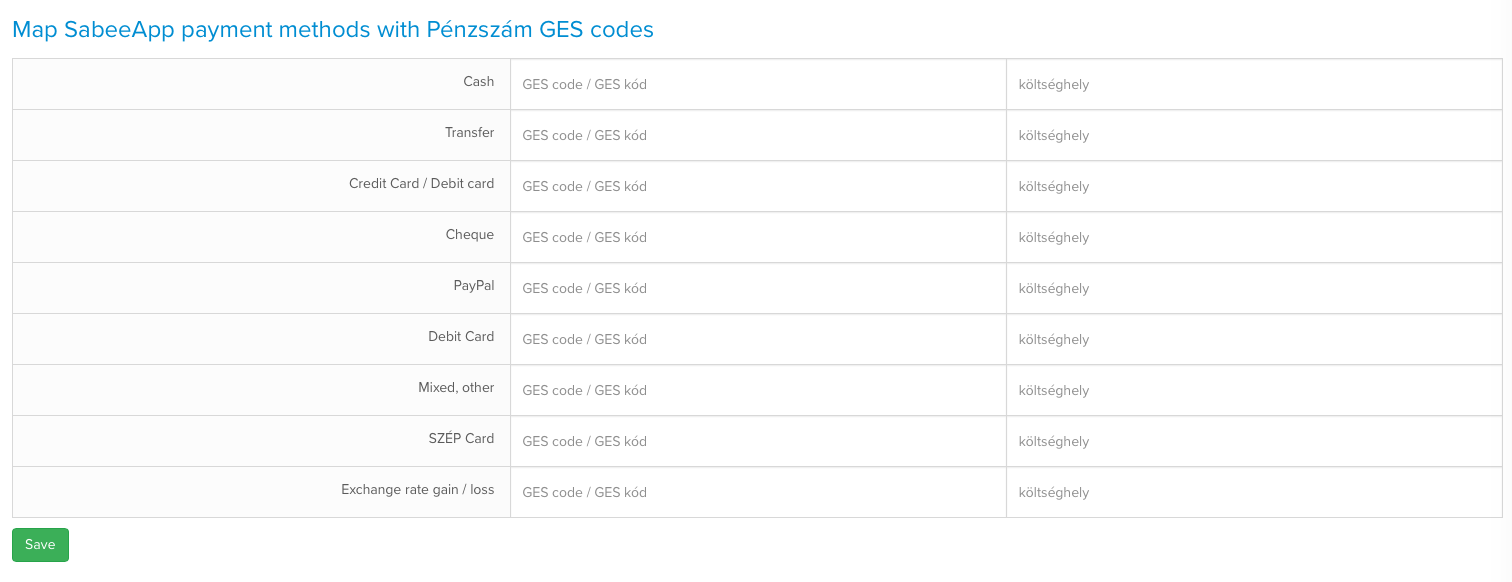
For each payment method (cash, credit card, bank transfer, etc.), you must also assign:
- A GES code (same principle as invoices)
- A cost center (indicates where the payment was processed)
This ensures exported payments are classified by type of revenue and where the payment was processed.
Example mapping table
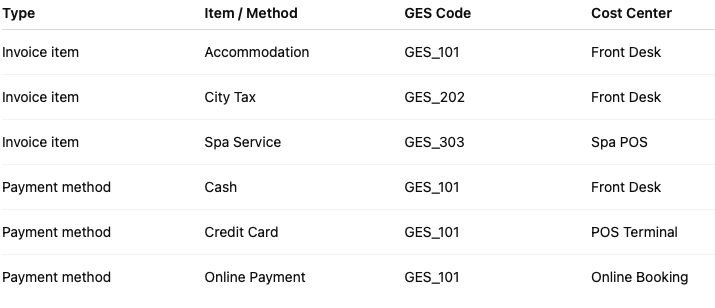
Each row in the exported CSV will include both a GES code and a cost center, so Pénzszám knows what the revenue is and where it came from.
3. Export monitoring
At the bottom of the marketplace configuration page, you can monitor:
- Generated CSV files
- Export status (successful or failed)
This allows you to quickly verify that exports are being created correctly.
How the export works
- SabeeApp generates an export once per day, at a predefined time (midnight)
- The export contains data from the previous 24 hours
- The CSV file is automatically uploaded to the configured Google Drive folder
Included data
Each export file contains:
- Invoices
- Prepayment invoices
- Proforma invoices
- Payments (each payment appears as a separate row)
File format
- The export file is generated in CSV format
- The structure and content fully comply with Pénzszám’s import requirements
- No manual formatting or modification is required before importing into Pénzszám
Summary
The Pénzszám Accounting Software integration provides a fully automated way to export SabeeApp accounting data daily, ensuring compatibility with Pénzszám and reducing manual workload.