
🎥 Prefer a quick walkthrough?
Watch the step-by-step video guide:
-
about manually adding transactions.
- automatically sending cash transactions from SabeeApp to Cash Drawer
Overview
A transaction is a record of money moving into or out of a cash drawer. Any time cash changes hands—whether it’s income, an expense, a transfer between drawers, or a currency exchange—a transaction is created.
Transactions form the basis of all cash tracking and reporting in Cash Drawer.
What Information Is Stored in a Transaction
Every transaction is permanently recorded in the system and includes a complete audit trail:
- Created by: The user who recorded the transaction
- Created at: Date and time
- Transaction type: Income, expense, transfer, or exchange
- Amount and currency
- Affected drawer
- Description: What the transaction represents
This ensures full traceability of all cash movements.
Transaction Types
CashDrawer supports four transaction types:
Income
Records cash coming into your business, such as:
- Cash payments from guests
- Cash service charges
- Other cash income
Expense
Records cash leaving your business, such as:
- Cash payments to suppliers
- Purchasing items with cash
- Other cash expenses
Transfer
Records internal cash movements between your own drawers, including:
- Moving cash from one drawer to another
- Consolidating or splitting drawer balances
- Internal redistribution of cash
Exchange
Records currency conversions, for example:
- Exchanging one currency for another
- Handling guest currency exchanges
- Managing multi-currency cash operations
Adding a Transaction Manually
Step 1: Open the Transactions Screen
You can start a transaction from either location:
-
Go to Transactions, then select a drawer or

-
Go to Settings → Drawers, then select a drawer
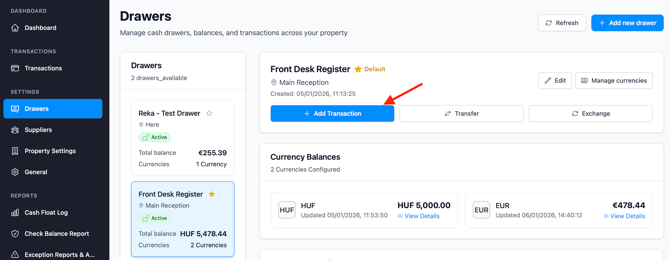
Both paths open the same transaction workflow.
Click +Add transaction.
Step 2: Enter Transaction Details
A form or modal window opens. The required fields depend on the transaction type.
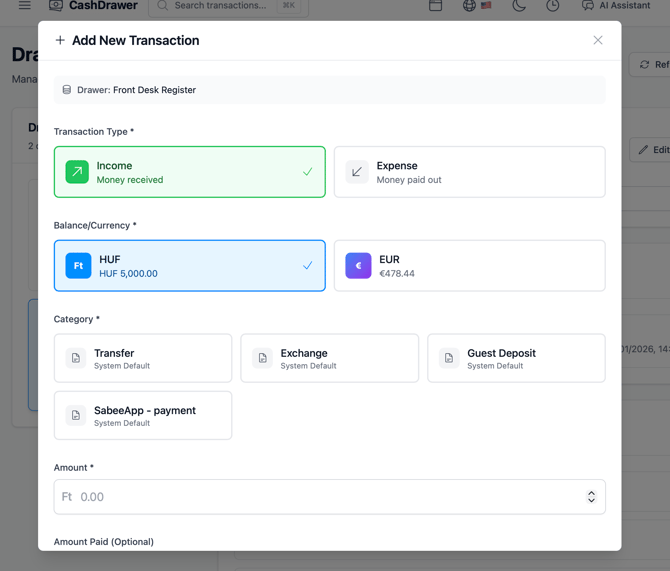
Income transactions
Required and optional fields include:
- Currency (required): Defaults to the property’s base currency
- Category (required): Used for reporting
- Amount (required): Must be greater than zero
- Description (required): Clear explanation of the transaction
- Guest (optional): Link to a guest or reservation
- Supplier (optional)
Expense transactions
Required and optional fields include:
- Currency (required)
- Category (required)
- Amount (required)
- Description (optional): Reason for the expense
- Supplier (required or optional, depending on setup)
- Guest (optional)
Step 3: Save the Transaction
- Review the entered details
- Confirm the correct amount, currency, and drawer
- Click Save transaction
The transaction is immediately added to the drawer and reflected in the balance.
Adding Transactions Automatically via SabeeApp PMS
Why Use the SabeeApp Integration
When Cash Drawer is integrated with SabeeApp PMS, cash payments recorded in SabeeApp are automatically sent to Cash Drawer.
Benefits include:
- Real-time drawer balance updates
- No duplicate data entry
- Reduced risk of human error
- Faster and more accurate reconciliation
How the Integration Works
- A guest pays in cash.
- The payment is recorded in SabeeApp PMS.
- The transaction is automatically sent to Cash Drawer, including:
- Amount and currency
- Guest and reservation details
- Correct transaction category
- The assigned cash drawer balance updates automatically.
If only one drawer exists, all currencies default to that drawer.
Setting the Default Drawer for SabeeApp Payments
If you use multiple drawers or currencies, you must define where SabeeApp cash payments are recorded.
Configure default drawer per currency
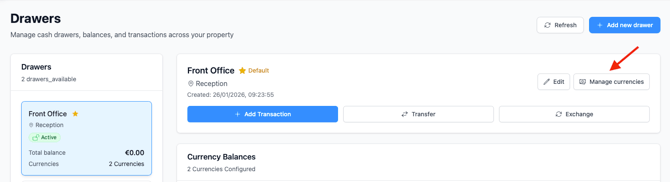
-
Go to Settings → Drawers → Manage currencies
-
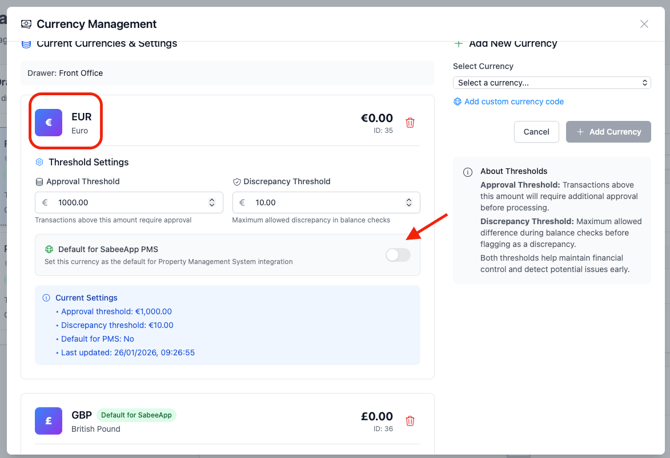
Select a currency
-
Enable Default for SabeeApp PMS
-
Click Save settings
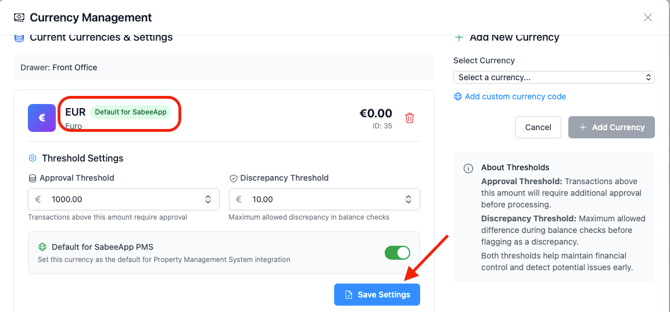
This determines which drawer receives SabeeApp cash payments for that currency.
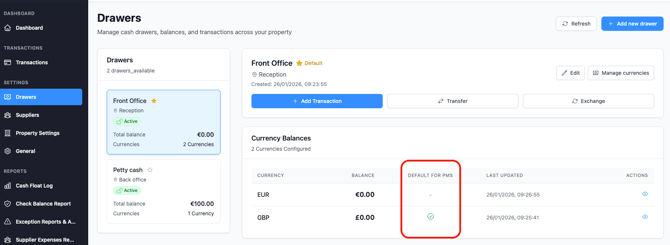
Checking SabeeApp Default Drawer Settings
To verify current settings:
- Go to Settings → Drawers
- Select a drawer
- Check the Currency balance section for the Default for PMS indicator
For example: In the screenshot below EUR is not the default drawer for SabeeApp, but GBP is.
Viewing SabeeApp Transactions
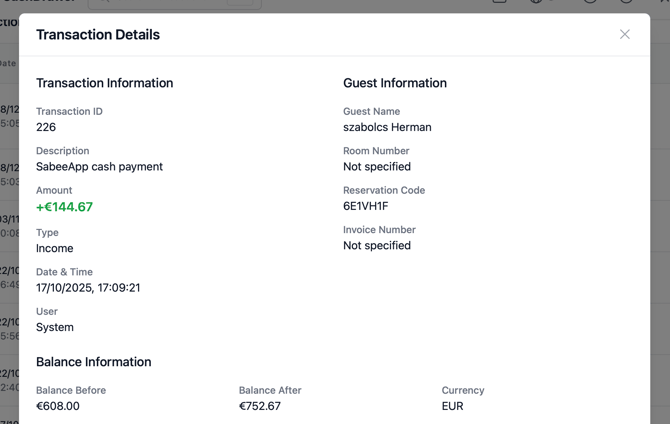
SabeeApp-generated transactions appear with the following details:
-
Category: SabeeApp – payment
-
Description: SabeeApp cash payment
-
User: System
-
Reservation details: Guest name and reservation code
-
Timestamp: the exact time when the transaction was received in CashDrawer (this may differ by up to 1 minute from the time recorded in SabeeApp, as the API call is updated once per minute when the most recent payments are submitted).
-
Amount and balance information
Summary
- Transactions record all cash movements in Cash Drawer
- Each transaction includes a full audit trail
- Transactions can be added manually or automatically via SabeeApp PMS
- Proper drawer and currency configuration ensures accurate reporting