
Creating seasonal offers and promotional deals — such as Christmas specials, spring campaigns, or package deals — is simple using Rate Plans and Services settings.
You can either:
- Use a standard rate plan and open it only for a specific promotional period, or
- Create an Early Bird rate plan, where you define how far in advance guests must book to receive the offer.
Early Bird rate plans are designed to help boost direct bookings on your Booking Engine by encouraging guests to book early and by allowing you to bundle services into attractive packages.
🏢 What Is an Early Bird Rate Plan?
An Early Bird rate plan is a special pricing setup that:
- Is created for a specific promotional period
- Allows you to define how far in advance guests must book
- Appears on the Booking Engine only during the allowed booking period
- Is not synced to external channels (such as OTAs or Google Hotel Ads)
- Can include additional services or packages to help increase sales
Examples include:
- Christmas Special
- Spring Escape Offer
- Early Booking Discount
- Special Price with E-Bike Included
🆕 Standard Rate Plans as Promotions
Promotions are not limited to Early Bird rate plans — you can also use a standard rate plan as a promotional offer.
A standard rate plan can be:
- Opened only for a specific promotional period
- Used to create seasonal or campaign-based offers without booking window restrictions
This means:
- Guests searching for the promotional period will see the offer directly in the list of available rate plans
- The promotion behaves like a normal rate plan, just limited to selected dates
👉 In contrast, Early Bird rate plans are only shown if the guest also matches the defined advance booking window.
Both approaches can be used depending on whether you want visibility based on stay dates (standard rate plan) or booking behaviour (Early Bird).
🛠️ How to Create an Early Bird Rate Plan
Step 1: Create the Rate Plan
- Go to Prices → Rate Plans
- Click Add New Rate Plan
- Enter a clear and attractive name for the promotionExamples:
- Christmas Special
- Spring Escape Deal
- Special Price with E-Bike Included
The rate plan name is visible on the Booking Engine, so make it appealing and descriptive.
- Decide whether the rate plan should be linked to Master Prices
In most cases, Early Bird rate plans are not linked and use their own pricing structure.
Step 2: Configure the Rate Plan Settings
After creating the rate plan:
- Open the newly created rate plan
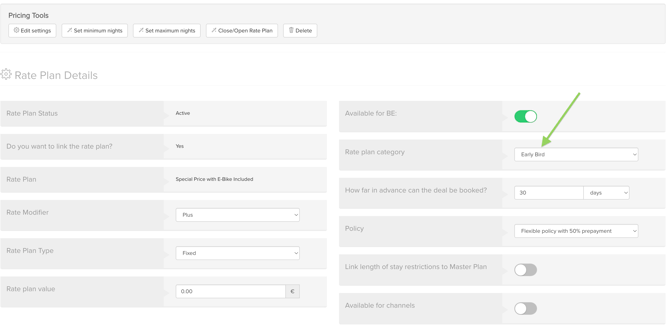
- Click Show Tools
- Select Edit Settings
Now configure the following settings:
Required Settings
- Activate the rate plan by enabling the Available for BE toggle(the slider should turn green)
- Select Early Bird as the rate plan category
- Define how far in advance guests must book(for example, 30 days or 3 months before arrival)
- Select the appropriate:
- Cancellation and Payment policy
- Choose whether to:
- Link minimum stay restrictions to the Master rate plan, or
- Configure them separately
-
Leave the Channel Connection toggle inactive (grey)
Early Bird rate plans are designed for direct bookings only and are not synced to external channels.
🆕 How This Differs from Standard Rate Plans
With a standard rate plan used for promotions:
- You do not set a booking window restriction
- You only control which dates the offer is open for sale
- The offer appears directly when guests search those stay dates
With an Early Bird rate plan:
- Guests must also meet the advance booking requirement
- The offer only appears if both conditions are met:
- Stay dates match availability
- Booking is made early enough
🆕 Important UX Difference vs Legacy Booking Engine
In the Legacy Booking Engine, packages had important limitations:
- They were not displayed together with other rate plans
- They appeared only as a separate “special offer” section
- When clicked, guests could only view that single offer in isolation
With this setup:
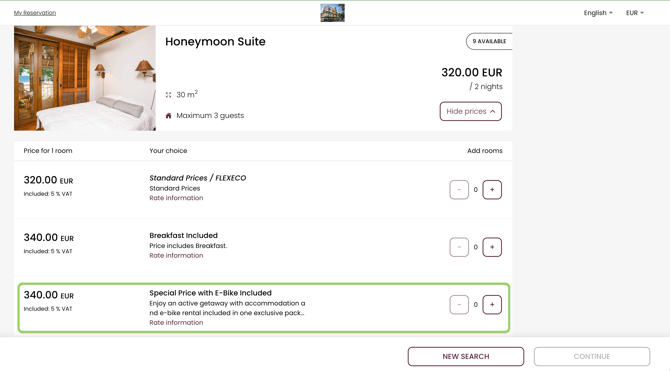
- All rate plans (including packages) are shown together in one list
- Guests can easily compare all available offers side by side
- This creates a more transparent booking experience, where guests can choose the offer that best suits their needs
Step 3: Configure Availability Periods
To make the promotion available only during a specific season or campaign period, the rate plan must remain closed outside the promotional dates.
For example:
- A Christmas promotion should only be open during the Christmas campaign period
- A Spring promotion should only be available during the selected spring dates
Best Practice
After creating the rate plan:
- Close the rate plan for all dates by default
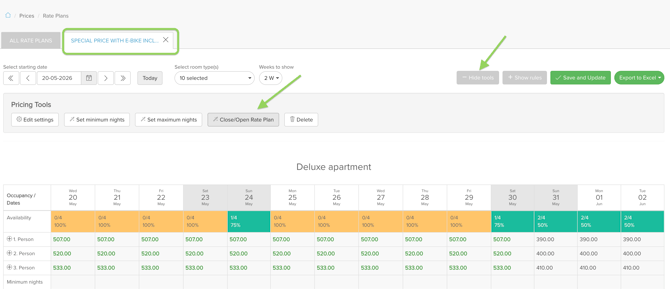
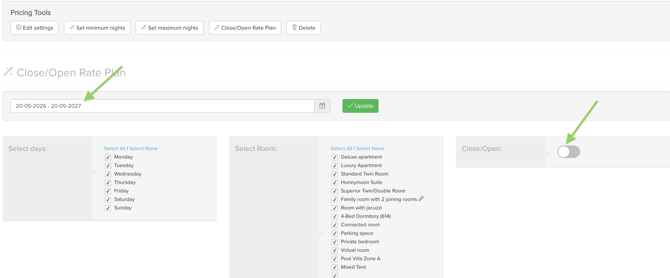
- Open availability only for the promotional period
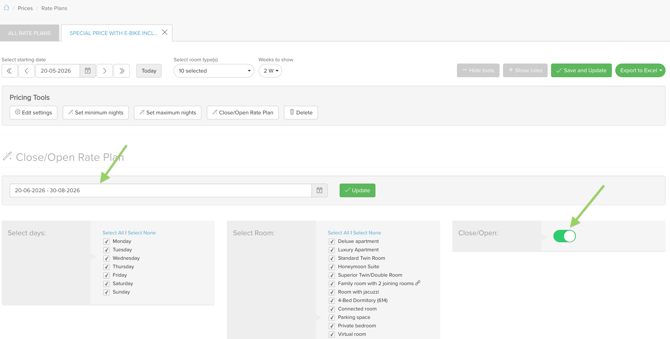
This ensures the promotional offer is visible and bookable only when intended.
Early Bird rate plans should always be carefully managed through availability settings to avoid accidental bookings outside the campaign period.
Step 4: Add Pricing and Restrictions
Next, configure pricing, availability, and restrictions for the rate plan.
The setup depends on whether the rate plan is linked to Master Prices.
🔗 If the Rate Plan Is Linked to Master Prices
Define how the promotional rate differs from your Master Prices using the following settings:
Rate Modifier
Choose whether the promotional rate should be:
- Cheaper, or
- More expensive than the Master Price
Rate Plan Type
Select how the adjustment should be calculated:
- Percentage
- Fixed amount
Rate Plan Value
Enter the value of the adjustment.
Examples:
- 10% discount
- €20 cheaper per night
This setup ensures the promotional rate automatically follows your standard pricing while applying the desired discount or surcharge.
❌ If the Rate Plan Is Not Linked to Master Prices
You will need to manually configure:
- Prices
- Minimum night stay restrictions
- Availability
These settings are managed the same way as independent rate plans or Master rates.
🎁 Add Services to Build Promotional Packages
Once pricing has been configured, you can enhance the promotion by attaching services to the rate plan.
This is useful for creating package deals and increasing direct bookings.
Examples include:
- E-bike rental
- Spa access
- Romantic welcome package
- Dinner included
- Free parking
Service Configuration Options
Services can be configured in different ways:
- Included in the rate plan price
- Added as an extra cost, but compulsory service, meaning the guest cannot remove it from the booking
For package promotions, the recommended best practice is:
✅ Include the service within the package price
✅ Still invoice it separately as a service item
To achieve this:
- Create the service as a Derived Service (with this it will be included in the room price, but will be created as a separate folio item, so you can invoice it)
- Assign the service only to the specific promotional rate plan
This setup allows:
- A cleaner package presentation on the Booking Engine
- Better reporting and invoicing
- Easier tracking of package components and service revenue
Example
If you want to promote a cycling holiday package:
- Create an E-Bike Service
- Configure it as a Derived Service
- Assign it only to the Special E-bike Included rate plan

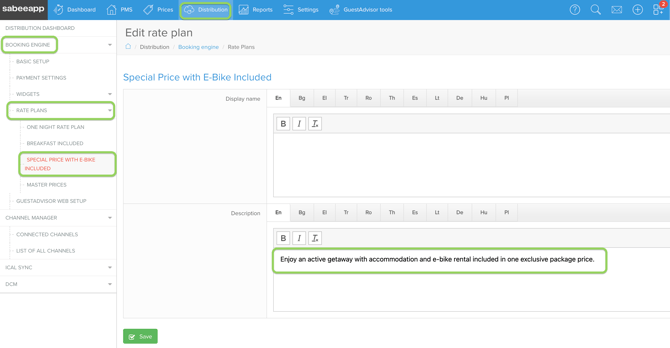
As a last step add a description to the Distribution / Booking Engine /Rate Plans to make it more attractive and don't forget to do that in all languages that you use the Booking Engine on:
Guests will see a complete package offer while the property can still track and invoice the e-bike portion separately.
💡 Best Practices for Promotional Rate Plans
- Use attractive and easy-to-understand names
- Add urgency with booking deadlines
- Keep promotions exclusive to the Booking Engine
- Combine discounts with valuable services instead of only lowering prices
- Open the rate plan only for the promotional period
- Use included derived services for professional package promotions
Examples:
- Book Early & Save 15%
- Christmas Market Escape
- Spring Wellness Package
- Cycling Weekend Deal