
Adding new users to your SabeeApp account is simple and flexible. Follow the steps below to set up roles, permissions, and access for your team.
1. Access User Management
In the upper-right corner of the SabeeApp screen, you’ll see the profile icon for the currently logged-in user.
Click this icon and choose User Management from the dropdown menu.
A new window will open.
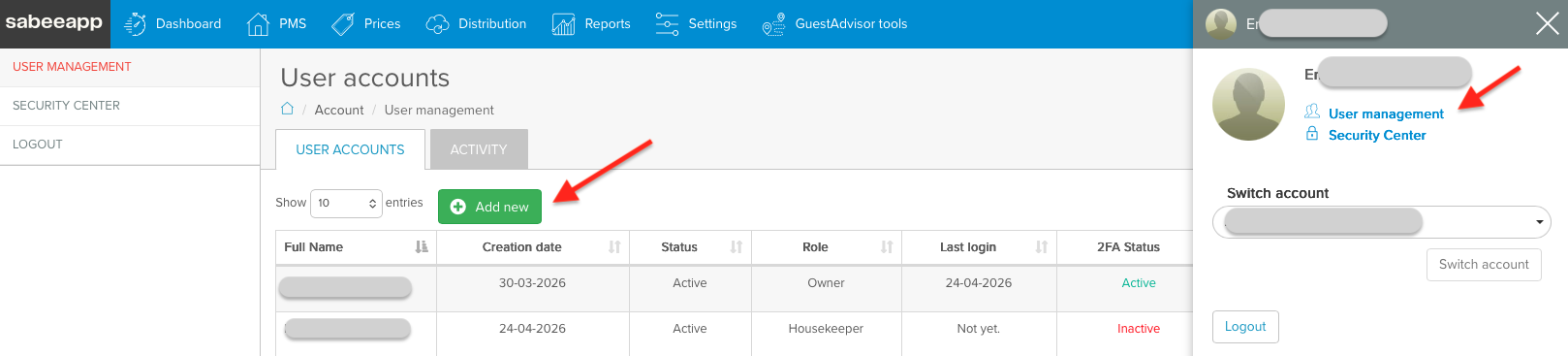
2. Add a New User
In the User accounts window, click on Add new to create a new user.
Fill in the required fields:
- First name
- Last name
- Email address
- Country
- Phone number
Additional fields are optional.

3. Select a User Role & Set Permissions
Each new user must be assigned a role. You can also customize permissions to control what the user can see or change.
Available Roles
Operator
Designed for colleagues who need access to reservations, rates, reports, and other operational areas. You can fully customise which menus an Operator can access.
For example: a receptionist may need access to the Dashboard, PMS, and Distribution menus, but not necessarily Reports or Settings.
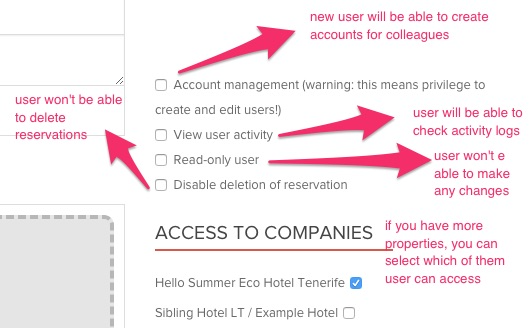
Operators can also be given additional permissions, such as:
-
Account management
(Can add new users and change user permissions — except for the owner account)
-
Viewing user activity
-
Restricting certain actions, such as modifying reservations
Visitor
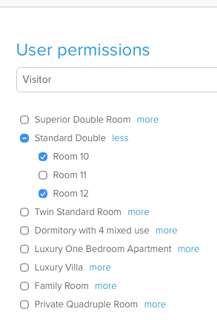
Ideal for apartment owners or partners who only need to view occupancy.
A Visitor account provides access to the PMS / Calendar menu, but only for the specific room or room type assigned to that visitor.
Housekeeper
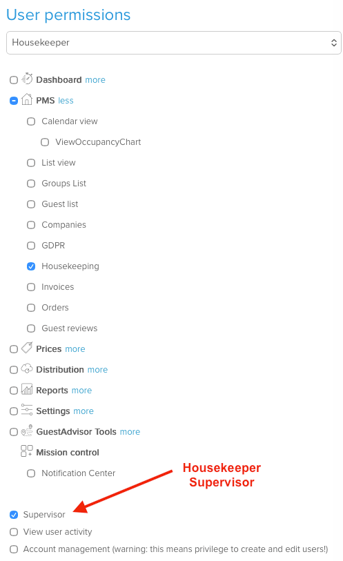
A Housekeeper login automatically includes access to the PMS / Housekeeping menu.
This allows staff to view room status and update cleaning tasks.
Housekeepers may also be granted Supervisor permissions.
A Housekeeper Supervisor sees the same PMS / Housekeeping menu but also gains the ability to assign specific rooms to their team.
Housekeeper (without login)
Provides the same permissions as a standard Housekeeper account, but without requiring a username or password.
This option is useful when you want to register Housekeepers in the PMS quickly so you can assign rooms and tasks and print Housekeeping Lists without creating full user accounts.
3. Email Verification
After saving the user, SabeeApp sends a verification email to the address provided.
The user must click the verification link to activate their account.
4. Login Credentials
Once the email is verified, the user receives a second email with:
- Username
- Password
They can now log in to SabeeApp.
5. Troubleshooting
If the verification email doesn’t arrive:
- Confirm the email address is correct
- Wait a few minutes — delivery can be delayed
- Check spam, junk, or promotions folders
6. Multi-Property Access
If your business operates multiple properties or companies, you can choose which locations the new user can access.
For example, a receptionist hired for one hotel doesn’t need to see data from another hotel.
Important: Who Can Add or Remove Users?
Only the following users can manage (add or remove) users:
- Account Owners
- Operators with account-management permissions
Permission rules:
- Account Owners can assign any menu access and permissions when creating a new user.
- Operators with account-management permissions can only assign access to menus they themselves have permission to.