
What is a Handover?
A handover is a formal fund transfer between two drawers, initiated by one user and requiring explicit acceptance by the recipient. It creates an auditable record of funds moving between staff members, making it suitable for shift changes and inter-department transfers.
Creating a Handover
Handovers are initiated from the Transactions page:
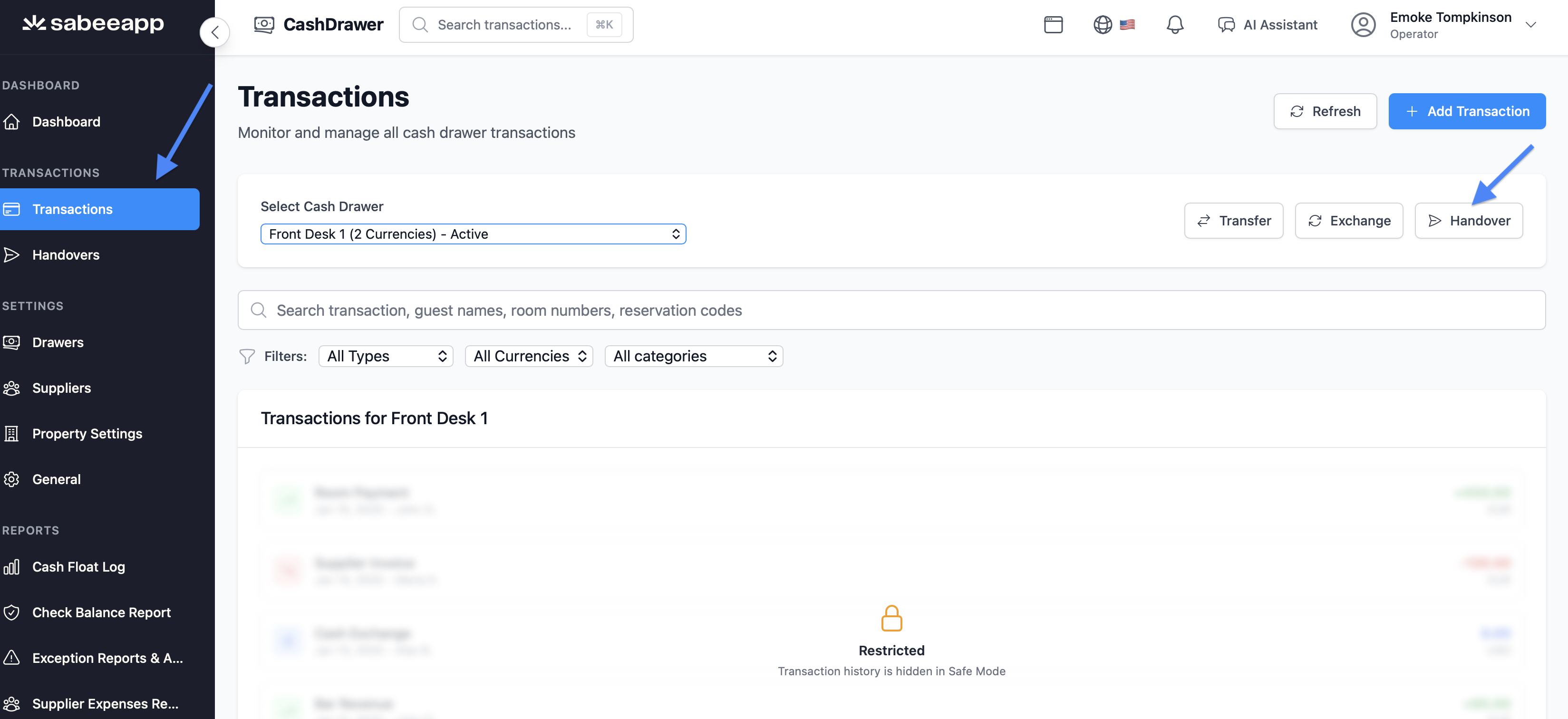
- On the Transactions page, locate the "Handover" button in the quick actions area.
- Click it to open the Handover form.
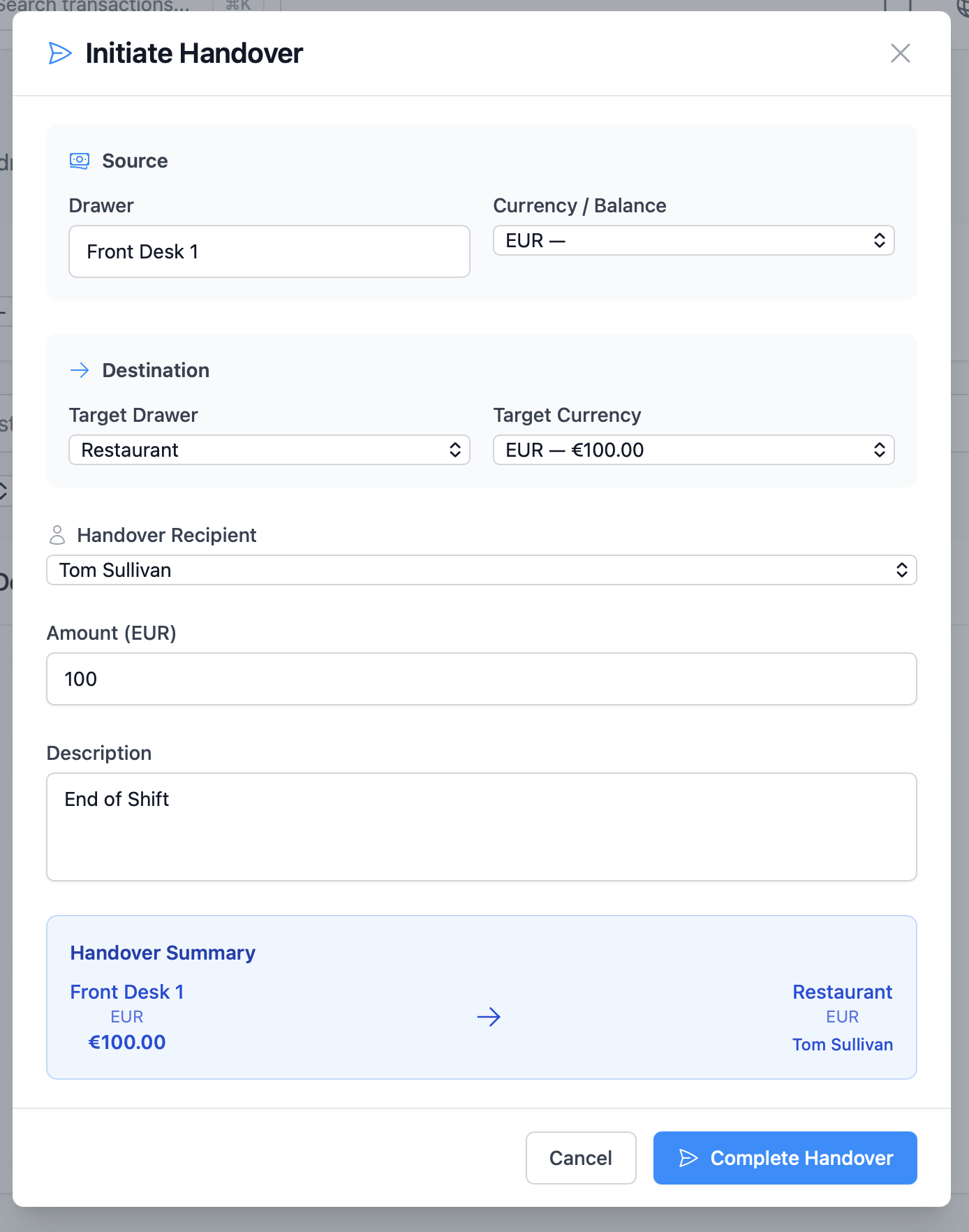
- Fill in the following fields:
- Source Drawer - Pre-filled with your current drawer. Select the currency and balance to transfer from.
- Destination Drawer - Select the target drawer and target currency/balance.
- Recipient - Choose the employee receiving the funds from the dropdown list.
- Amount - Enter the amount to transfer (decimals accepted).
- Description - Enter a reason for the transfer (required).
- A summary preview shows the full transfer: source drawer, arrow, destination drawer.
- Click "Complete Handover" to submit.
- If the amount exceeds the configured approval threshold, a PIN verification prompt will appear. Enter your PIN to confirm.
- On success, a confirmation screen displays "Handover Initiated" and the modal closes automatically after 3 seconds.
The Handovers Page
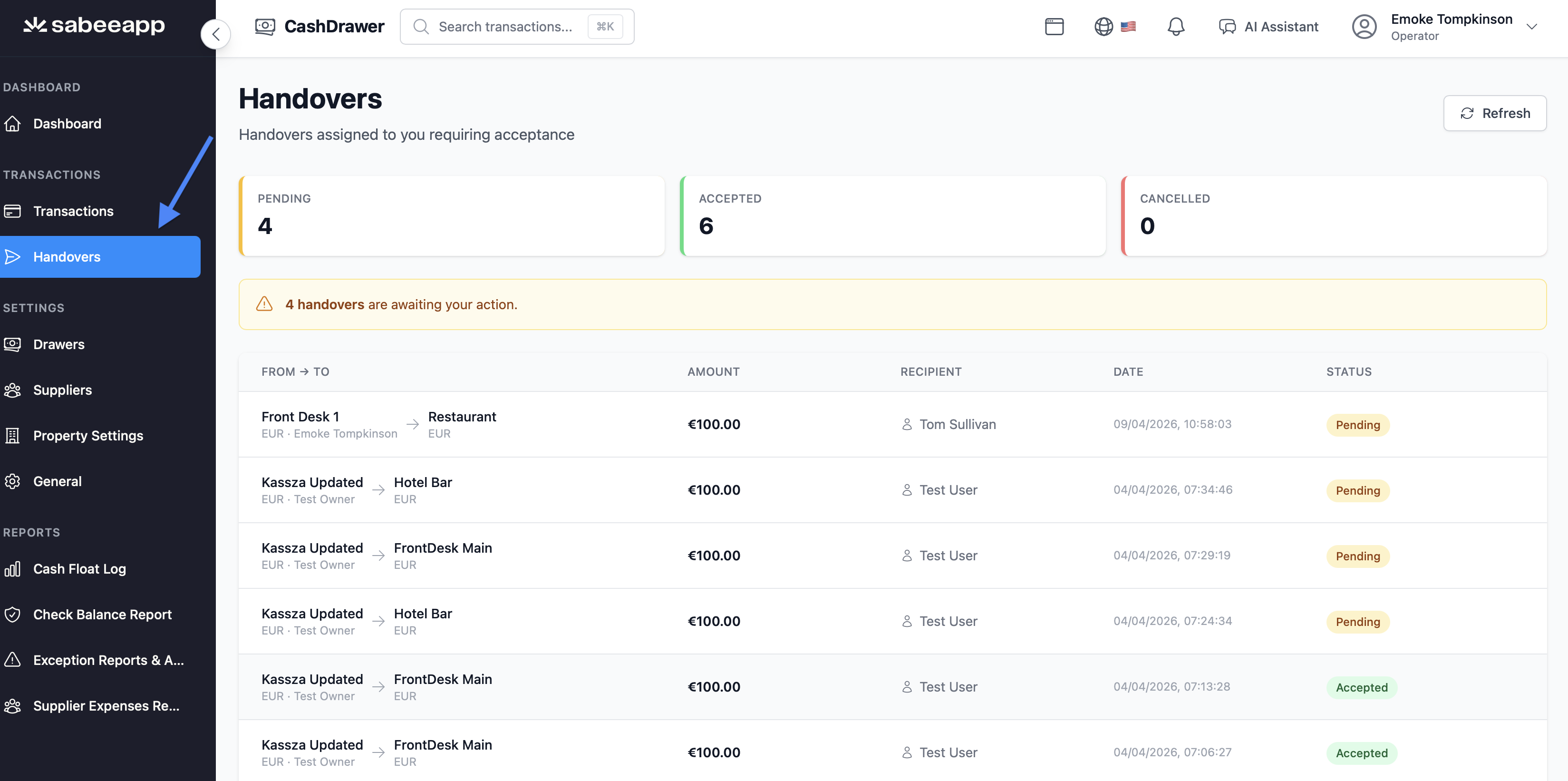
All handovers can be tracked on the dedicated Handovers page, accessible from the main navigation.
Page Overview
- Header: Shows a count of pending handovers requiring your action. An amber alert reads: "X handover(s) are awaiting your action."
- Refresh button: Manually reload the list.
Stats Row
Displays a summary count of handovers by status:
- Pending (amber)
- Accepted (green)
- Cancelled (red)
Handover List
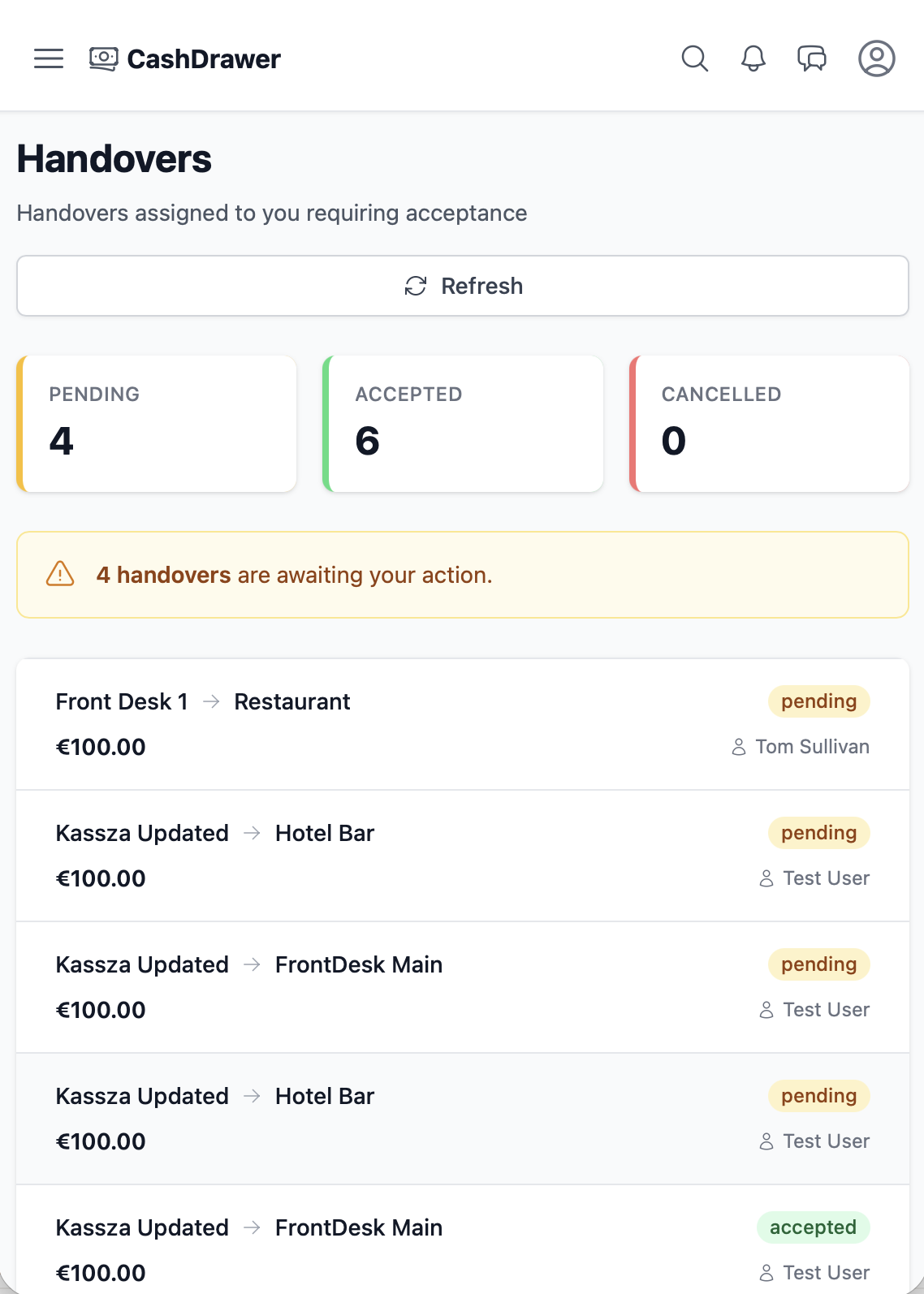
Each record shows:
- Source drawer → Destination drawer (with arrow)
- Transfer amount and currency
- Recipient name
- Date and time created
- Status badge (color-coded)
Layout:
- Mobile: records display as cards
- Desktop: full table with 6 columns
Permissions:
- Operators: see only handovers relevant to them
- Owners & Managers: see all handovers across the property
Viewing a Handover in Detail
Click on any handover in the list to open the Detail Modal, which shows:
- A full flow visualization with source and destination drawer information
- User names and currencies for both sides
- Transfer amount
- Description provided at creation
- Date and time stamp
- Action buttons based on your role and the handover's current status
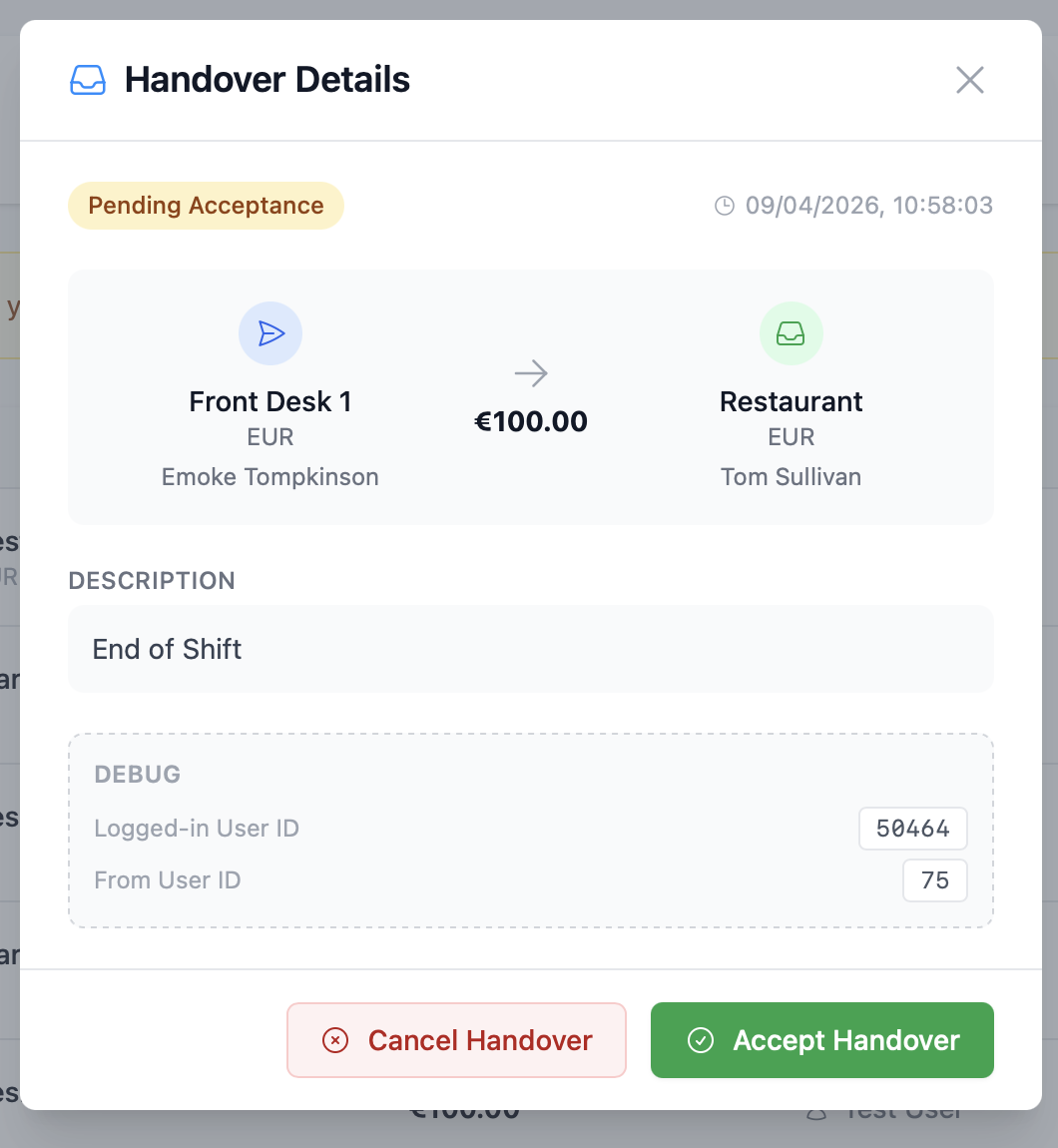
Handover Actions
| Your Role | Handover Status | Available Actions |
|---|---|---|
| You initiated the handover | Pending | Cancel Handover |
| You are the recipient | Pending | Accept Handover, Cancel Handover |
| Either role | Accepted | Close (view only) |
| Either role | Cancelled | Close (view only) |
- If you initiated the handover, a blue information banner reads: "You initiated this handover. Only the recipient can accept it."
- Buttons show a spinner while an action is being processed.
Handover Statuses
| Status | Badge Color | Meaning |
|---|---|---|
| Pending Acceptance | Amber | Awaiting recipient action |
| Accepted | Green | Transfer successfully completed |
| Cancelled | Red | Cancelled by initiator or recipient |