
RESnWEB is a real-time online booking engine with the latest technology integrated into your hotel’s website allowing your potential guests to conveniently calculate rates and book online 24/7
💰 Pricing
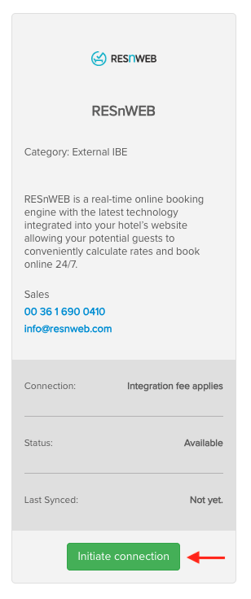
The RESnWEB integration is available for a monthly fee, which depends on your property's size.
To check the exact price:
-
Go to Settings → Marketplace in SabeeApp.
-
Find RESnWEB.
The fee is automatically added to your SabeeApp subscription upon activation.
🔗 Learn more about RESnWEB: https://resnweb.com
🔌 How to Connect to RESnWEB
Step 1: Initiate Connection
-
Go to Settings → Marketplace in SabeeApp.
-
Locate RESnWEB and click Initiate Connection.
-
Select “I already have a RESnWEB account.”
-
Select RESnWEB as your partner (required).
-
If RESnWEB is not listed, click Add New next to partner mapping to create it.
-
When creating the partner, choose Partner Type: Own Sales – IBE.
-
-
Confirm the subscription fee displayed (based on your room count).
-
After confirmation, the RESnWEB module will be added to your SabeeApp subscription.
💡 Important: You cannot complete the connection without accepting the subscription fee.
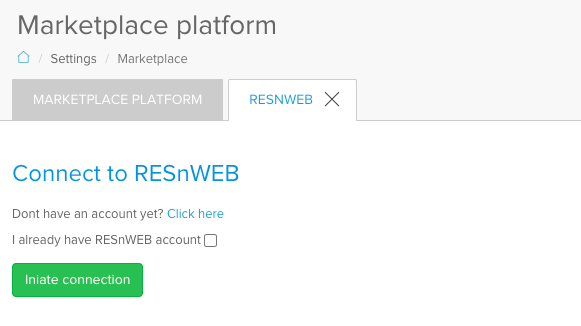
In case you don’t have an account yet, a link will take you to the website of RESnWEB where you can create your new account. If you already have RESnWEB account, tick the "I already have RESnWEB" checkbox and click on Initiate connection button.
Step 2: Select Rooms and Services to Sync
-
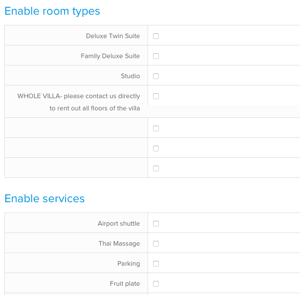
Choose which room types and services you want SabeeApp to synchronize with RESnWEB.
-
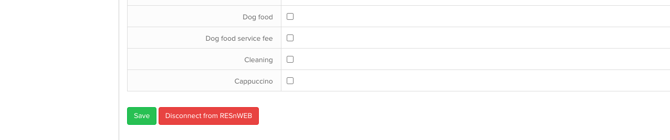
Once you selected all room types and services you would like to connect, click on the Save button on the bottom of the page. A popup message will inform you about the successful connection: “You have successfully connected your SabeeApp account to RESnWEB!".
You will also be able to disconnect RESnWEB by clicking the “Disconnect from RESnWEB” button.
Step 3: Finalise the connection
When you are ready with the connection steps in your SabeeApp account, you still have to complete the following steps:
-
Send your SabeeApp account manager an email to inform them which Rate Plans you want to connect to RESnWEB.
-
After you receive confirmation from the rate plans made avaialble for connection from your SabeeApp account manager, please make sure to contact the RESnWEB support team at support@resnweb.com so they can finalise the connection for you in their system.
-
When requesting the connection include your SabeeApp refferal ID in your email and your room type and rate plan mapping preferences. You can find your refferal ID under the Settings / General settings / Company details menu.
Important notes:
If you would like to syncronize a new room type to RESnWEB, please make sure to thick its box and click on the save button as RESnWEB cannot detect your preferences automatically.
RESnWEB can handle multiple prices of a service depending on the category of the guest (adult, children, infant). SabeeApp cannot handle this as we do not differentiate prices based on the guest category.