
Overview
This article explains how to connect Google Analytics 4 (GA4) and Google Tag Manager (GTM) to SabeeApp via the Marketplace.
Once connected, your Booking Engine can send data to your Google Analytics account, allowing you to analyse website traffic and booking-related activity.
This guide covers only the connection process in SabeeApp.
Connecting Google Analytics 4 and Google Tag Manager
To begin the setup, navigate to:
Settings → Marketplace → Google Analytics / Google Tag Manager
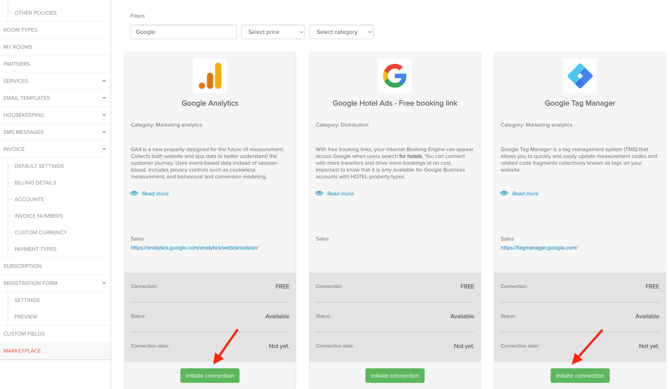
From here, you can configure both integrations.
Google Analytics Setup
Follow these steps to connect your Google Analytics account:
-
Click on Google Analytics in the Marketplace menu.
-
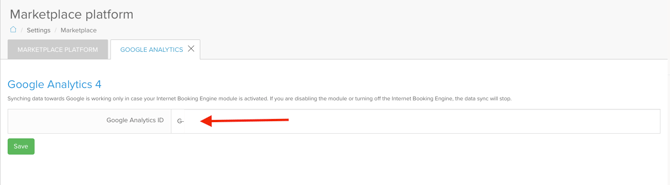
Copy your Google Analytics Tracking ID.
- Format:
G-XXXXXXXXX
- Format:
-
Paste the ID into the corresponding field.
-
Click the Save button.
-
The system will validate the ID and confirm whether the connection was successful.
Google Tag Manager Setup
Follow these steps to connect your Google Tag Manager account:
- Click on Google Tag Manager in the Marketplace menu.
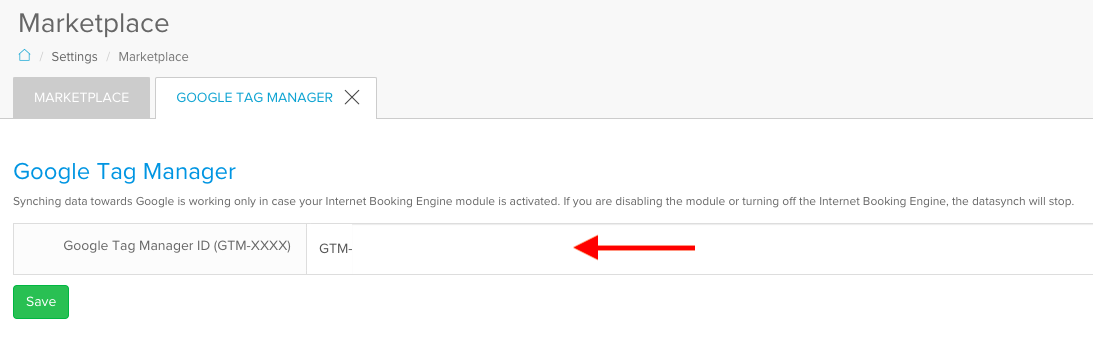
- Copy your Google Tag Manager ID.
- Format:
GTM-XXXXXXX
- Format:
- Paste the ID into the corresponding field.
- Click the Save button.
- The system will validate the ID and confirm whether the connection was successful.
Important Notes
- Data syncing to Google works only when the Booking Engine module is active. If the module is disabled, data synchronization will stop.
- After a successful connection, it may take 24–48 hours for data to appear in your Google accounts.
Next Steps: Tracking Setup
For GA4 and GTM configuration (such as events, conversions, and tracking setup), please refer to the advanced guide:
👉 [Setup guide: Google Tag Manager & GA4 Tracking for SabeeApp Booking Engine]
✨ What SabeeApp is responsible for
SabeeApp provides the technical connection between your Booking Engine and Google Analytics / Google Tag Manager through the Marketplace.
The setup and configuration of Google Analytics (GA4) and Google Tag Manager (GTM)—including tags, triggers, and tracking events—remain the responsibility of the property or their marketing partner.
As GA4 and GTM configuration requires specialist knowledge, our Support Team is not able to assist with troubleshooting or resolving issues related to their setup.
In such cases, we recommend working with a qualified digital marketing specialist.
Disconnecting Integrations
If you no longer need either integration:
- Go back to Settings → Marketplace.
- Open the connected Google Analytics or Google Tag Manager section.
- Click the Disconnect button.