
Overview
The Dashboard provides a complete, real-time view of your operations, combining performance metrics, balance summaries, alerts, and recent activity—all in one place. It is designed to help you monitor your business efficiently and make informed decisions quickly.
Page Header
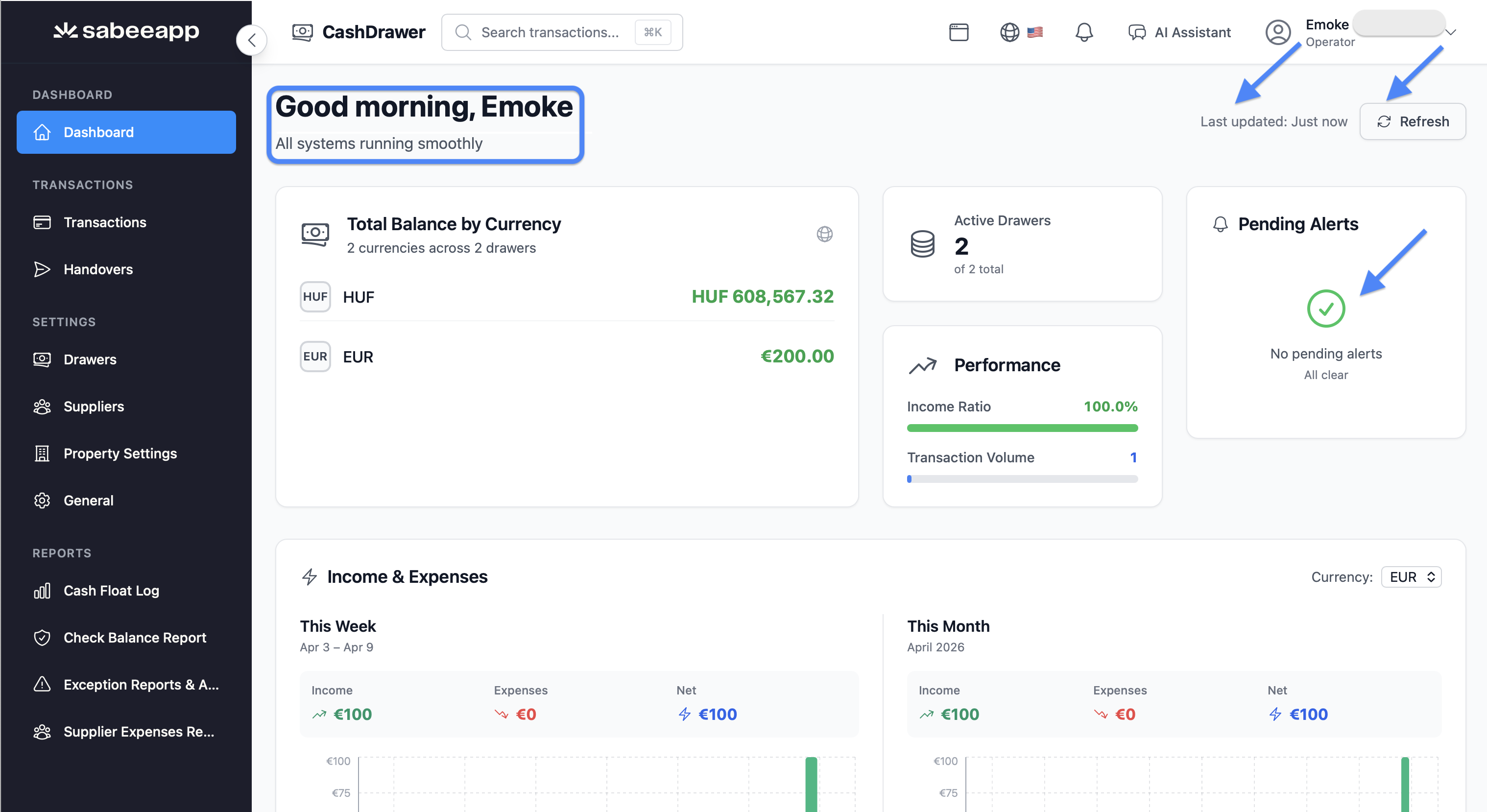
The header provides key at-a-glance information and controls:
- Personalized greeting: Changes based on time of day, e.g., "Good morning [Name]", "Good afternoon [Name]".
- Pending alerts count: Displays the number of unresolved alerts, or "No Pending Alerts " if none exist.
- Last updated timestamp: Shows when the data was last refreshed.
- Refresh button: Manually reloads the data.
- Loading spinner: Appears during background refreshes to indicate progress.
Loading Behaviour
When the Dashboard first loads, a progress indicator guides you through three stages:
- Essential Data (0–30%)
- Transactions (30–90%)
- Statistics (90–100%)
Each stage displays a progress bar and an overall completion percentage, so you can see which parts of the dashboard are ready.
Main Stats Widgets
The top section of the dashboard contains four key metric cards:
Total Balance by Currency
- Displays the top 4 currencies by balance.
- Shows currency code, currency name, and current balance.
- Balances are color-coded: green for positive, red for negative.
- A note appears if more than 4 currencies exist.
Active Drawers
- Shows the number of drawers currently active.
- Subtitle indicates the total number of drawers, e.g., "Of total: X drawers."
Performance
- Income Ratio: Green progress bar showing income relative to expenses.
- Transaction Volume: Blue progress bar showing today’s transaction count versus a benchmark of 50 transactions.
Pending Alerts
- Displays the number of unresolved alerts.
- View all link navigates to the full alerts list.
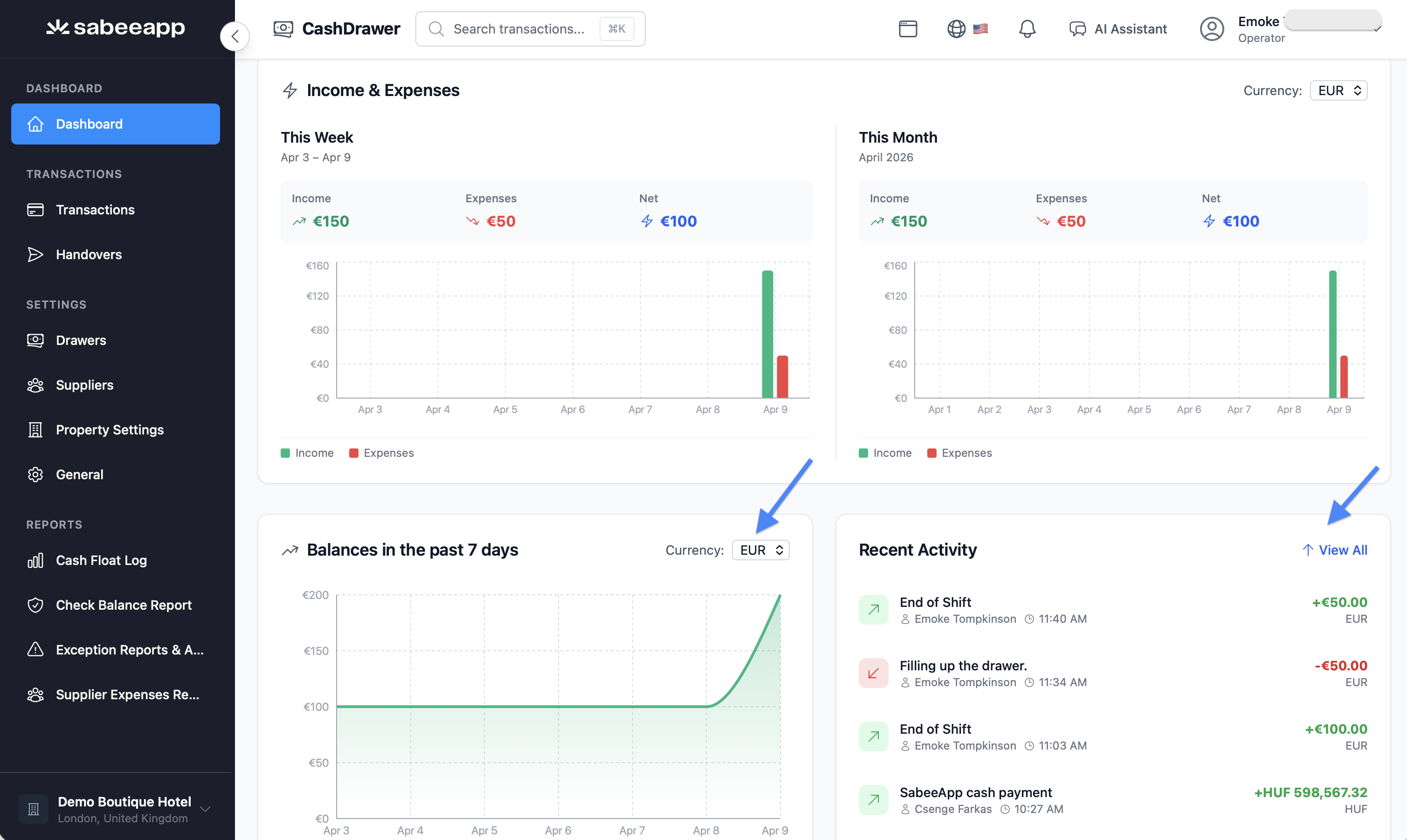
Balance History Chart
Located in the lower section of the dashboard:
- Displays balance trends over the past 7 days.
- Interactive: click to select a specific currency for the chart.
- Can overlay income and expense data on the same chart.
Recent Activity
Located alongside the Balance History chart:
- Shows the most recent transactions across all drawers you have access to.
- Each entry shows: transaction type icon, description, user name, time, and amount.
- Transaction types are color-coded:
- Green with an up-arrow icon: Income
- Red with a down-arrow icon: Expense
- Blue with an activity icon: Check/Reconciliation
- A "View all" link navigates to the full Transactions page.
Auto-Refresh
The Dashboard refreshes automatically every 30 seconds. During these updates, a spinner appears in the header to indicate background activity.
This article provides a full operational guide to using the Dashboard, showing all its features in one place.