If you use the booking engine and list both physical and virtual room types, we prevent overbookings by running a reservation collision check before saving the reservation.
How It Works
- Booking Process
- A guest can add both physical units (part of a Shared Inventory setup) and virtual units to their cart in the IBE.
- They can proceed through the booking steps until they reach the third page.
- Collision Check Trigger
- Once the guest enters their first name, last name, and email address, the system runs a collision check.
- If both a physical and virtual unit are detected in the cart, a popup appears:
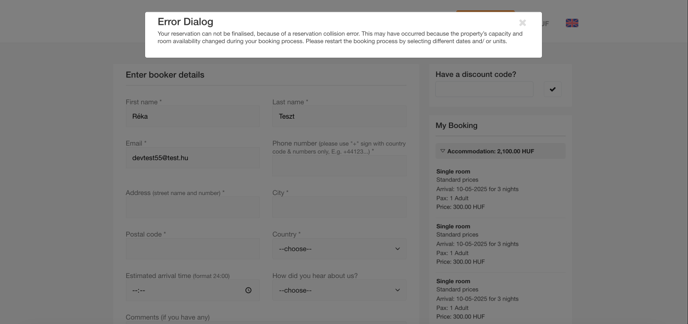
- The popup does not specify whether the issue is due to a physical/virtual unit conflict or an availability change.
- What Happens Next
- After closing the popup, the guest is redirected to the first page of the IBE to restart the booking process.
- The cart is not emptied automatically—the guest must remove items manually if needed.
Why the Collision Check Happens on the Third Page
- The system only saves reservations to specific rooms once the guest has entered their first name, last name, and email address.
- At this stage, the system can accurately detect the availability of the selected units.
Additional Information
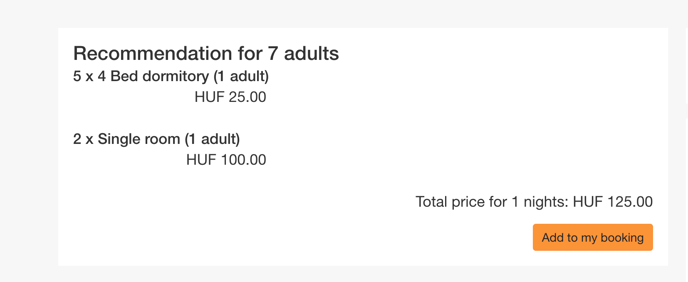
- Virtual units are excluded from the "Recommendations" section.
- This means that when offering alternative options, the system does not consider virtual units.