
Overview
PlaccOn is a cloud-based restaurant management system offering order taking, scheduling, inventory control, reporting, and online self-service ordering. Its online ordering module integrates with restaurant websites or Facebook pages, and mobile payments are supported via its NFC/QR solution, Querko.
When connected with SabeeApp PMS, the integration enables:
-
Automatic transfer of restaurant charges from PlaccOn POS to the corresponding guest folio in SabeeApp
-
Service-item mapping between the two systems
-
Retrieval of in-house guest lists with names and room numbers
-
Posting restaurant consumption directly to room bills
In addition, once a reservation reaches checked-in status, the guest information becomes available in PlaccOn POS. At that point, restaurant staff can identify the reservation using the names of any guests linked to the booking. This means the booking can be searched in PlaccOn using any guest name associated with the reservation, making it easier to locate the correct table or bill during service.
Connection Steps:
Go to the Marketplace
Log in to your SabeeApp account and navigate to Marketplace from the main menu.
Find PlaccOn
In the Marketplace, search for PlaccOn and click on Initiate connection.
Start the Connection
-
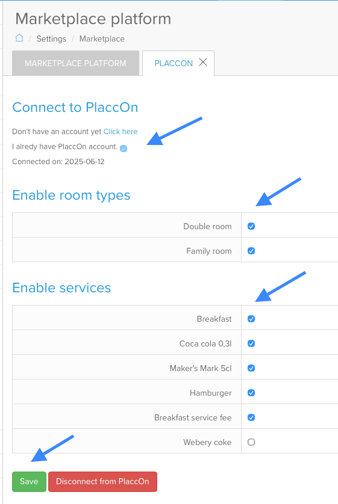
Tick the checkbox "I already have an account".
-
Click on the “Initiate connection” button.
-
To successfully sync services, each service must already exist both in SabeeApp and in PlaccOn.
-
During the Marketplace setup, your task is to select which services and rooms you would like to sync between the two platforms.
-
After ticking all relevant rooms and services, scroll to the bottom of the page and click Save to confirm your setup.
-
Once saved, the synchronisation between SabeeApp and PlaccOn will begin automatically.
Service Mapping (Unmapped External Services)
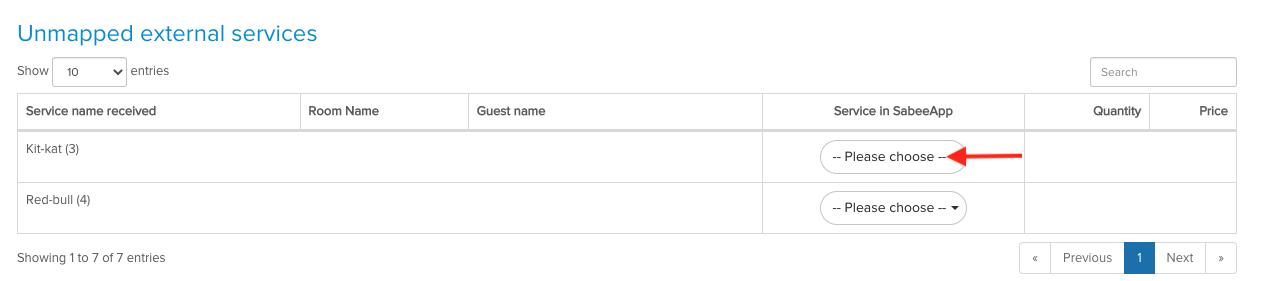
After the initial connection, if there are any services that could not be automatically matched between PlaccOn and SabeeApp, you will see the Unmapped External Services table on your Dashboard.
This table shows external POS services that SabeeApp does not automatically recognise as equivalent internal services.
From here, you can manually map these services:
- Open the Unmapped External Services table on the Dashboard (if any unmapped services exist).
- Click on an external service that needs mapping.
- Select the corresponding SabeeApp service from the “Please choose” dropdown.
- Confirm your selection by clicking OK.
Once a service is mapped:
- It will be removed from the unmapped list
- It cannot be unmapped afterwards (changes require support assistance)
- It will be correctly synchronised in future postings between PlaccOn and SabeeApp
If no unmapped services are visible, it means all services have already been correctly mapped or no mismatches were detected.
Availability
⚠️ Placcon integration is currently available for providers in Hungary and Romania whose company is registered in one of these countries. While PlaccOn is a cloud-based solution and could technically operate elsewhere, Placcon may not comply with local legal requirements outside Hungary and Romania.