
If you manage two or more SabeeApp accounts, the Multi-Property Booking Engine (MIBE) allows you to showcase all your properties together in a single, unified booking page. This makes it easier for guests to explore your portfolio and find the right property in one seamless experience.
How to Activate the Multi-Property Booking Engine
To enable the Multi-Property Booking Engine, follow these steps in each SabeeApp account you want to include:
-
Go to:Distribution → Booking Engine → Basic Setup
-
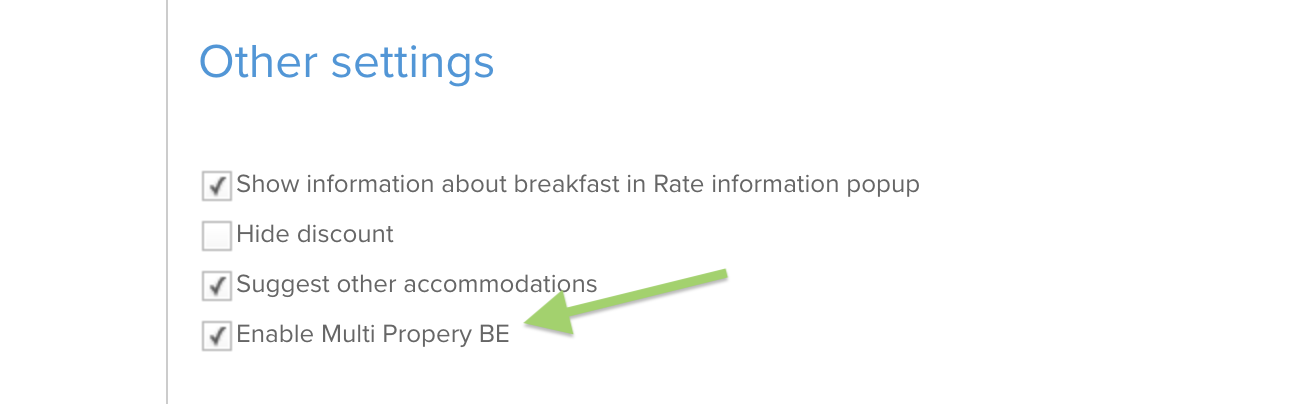
Scroll down to the Other Settings section
-
Enable:✔ Enable Multi Property BE
-
Repeat the same steps in at least one other SabeeApp account
👉 The Multi-Property Booking Engine will only be activated if at least two accounts have this setting enabled.
If you have more than two accounts, only those with the setting enabled will appear in the Multi-Property Booking Engine.
How to Access Your Multi-Property Booking Engine
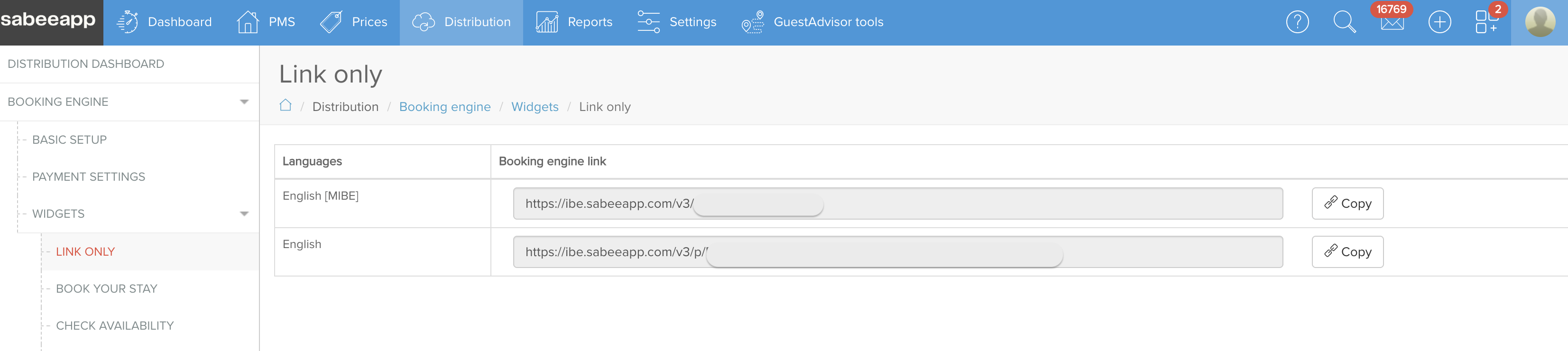
Once activation is complete, SabeeApp automatically generates your Multi-Property Booking Engine link.
You can find it here:
Distribution → Booking Engine → Widgets → Links
Here you will also see the dedicated URL for your Multi-Property Booking Engine.
Availability Widget (Optional)
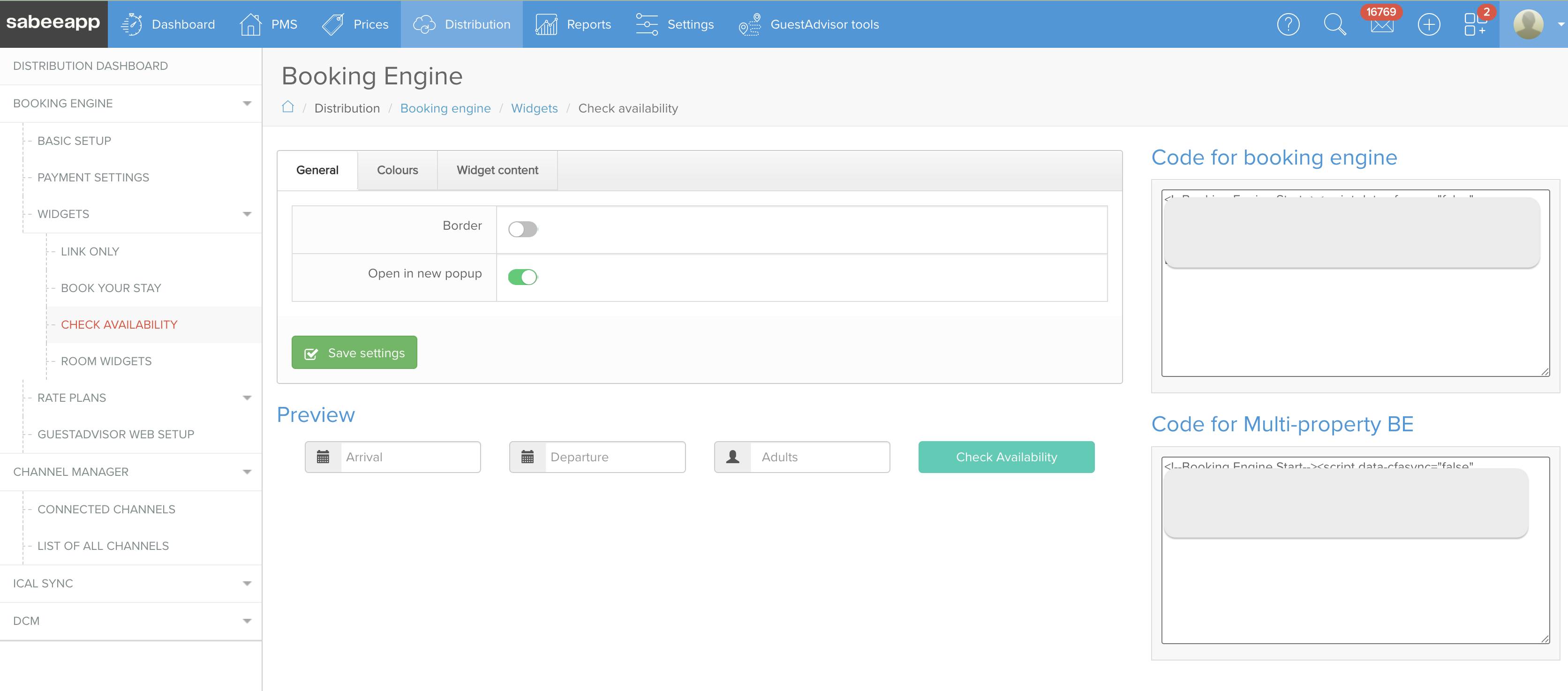
You can also use the Multi-Property “Check Availability” widget, available here:
Distribution → Booking Engine → Widgets → Check Availability
This widget:
-
Uses the same design as your individual Booking Engine widget
-
Automatically adapts to the properties included in your Multi-Property setup
-
Can be customised depending on your branding settings
How the Multi-Property Booking Engine Looks
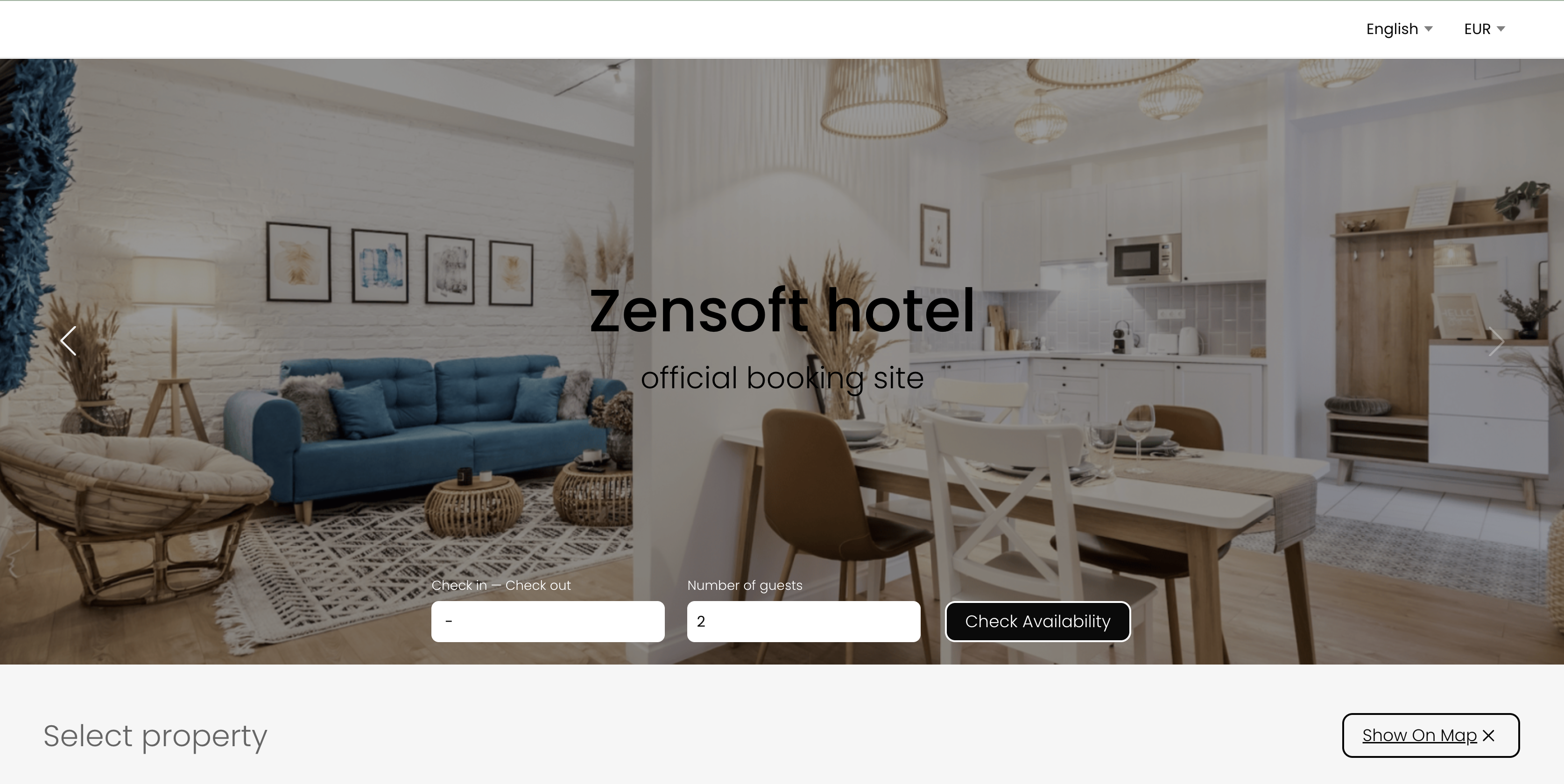
The MIBE interface is designed to help guests quickly compare your properties and choose the best option.
It consists of two main sections:
1. Banner Section
The top section displays:
-
Property images (banners)
-
Property names
Guests can:
-
Select check-in and check-out dates
-
Choose number of guests
-
Start a search with “Check availability”
Date and guest selection open interactive pop-ups to make the process faster and more user-friendly.
2. Property Selection Section
Below the banner, guests see all available properties with:
-
Pricing for the selected dates
-
Number of available rooms
-
Availability status
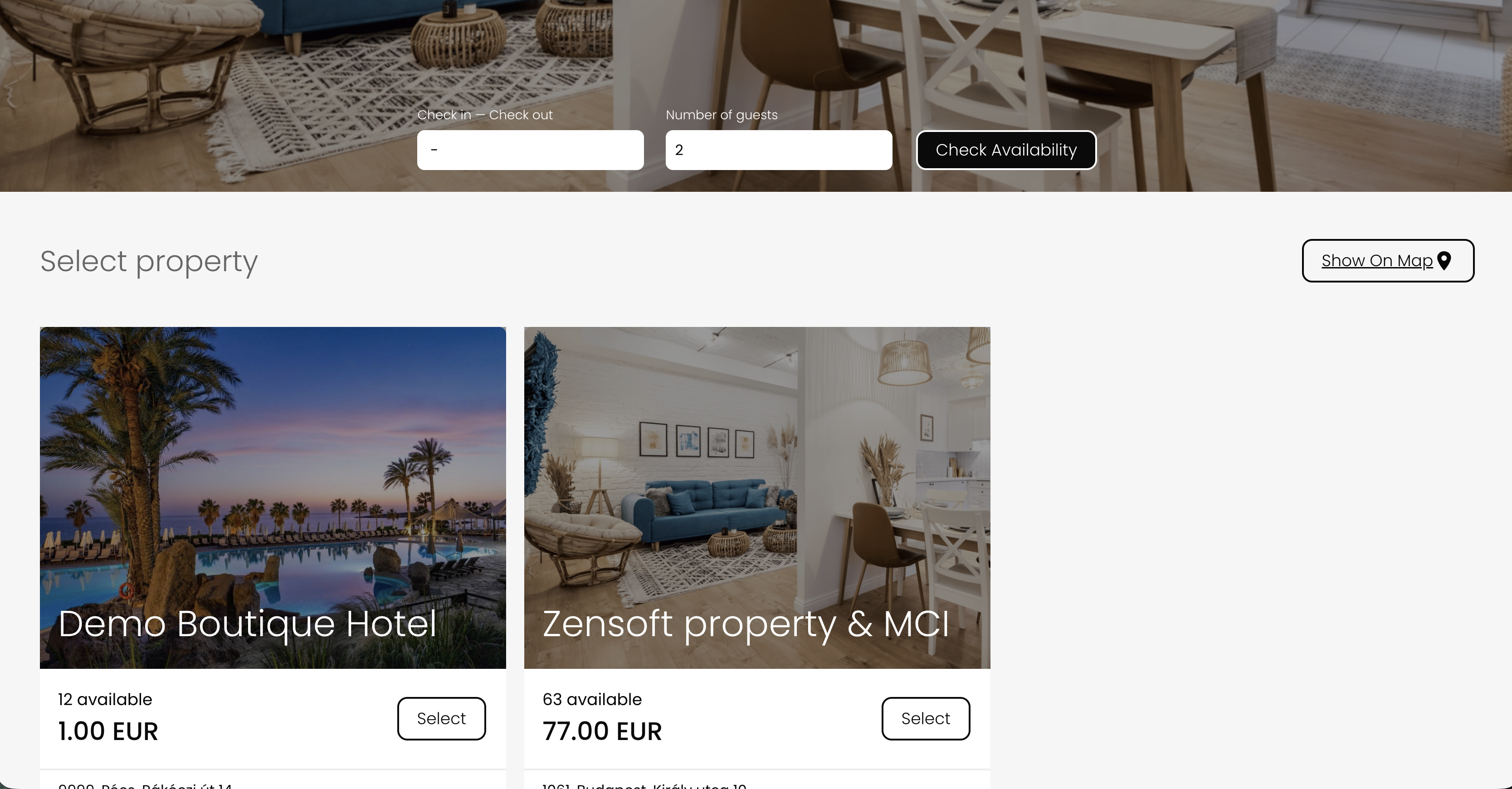 If a property is not available for the selected dates:
-
The card appears greyed out
-
An “Alternative dates” button is shown, allowing guests to quickly adjust their search
Flexible Search Experience
Guests can continue the booking process even without selecting search criteria first.
In this case:
-
They are redirected to the individual Booking Engine of the selected property
-
The system shows the lowest available price for today by default
👉 Inactive or unavailable properties are always shown at the bottom of the list for better clarity.
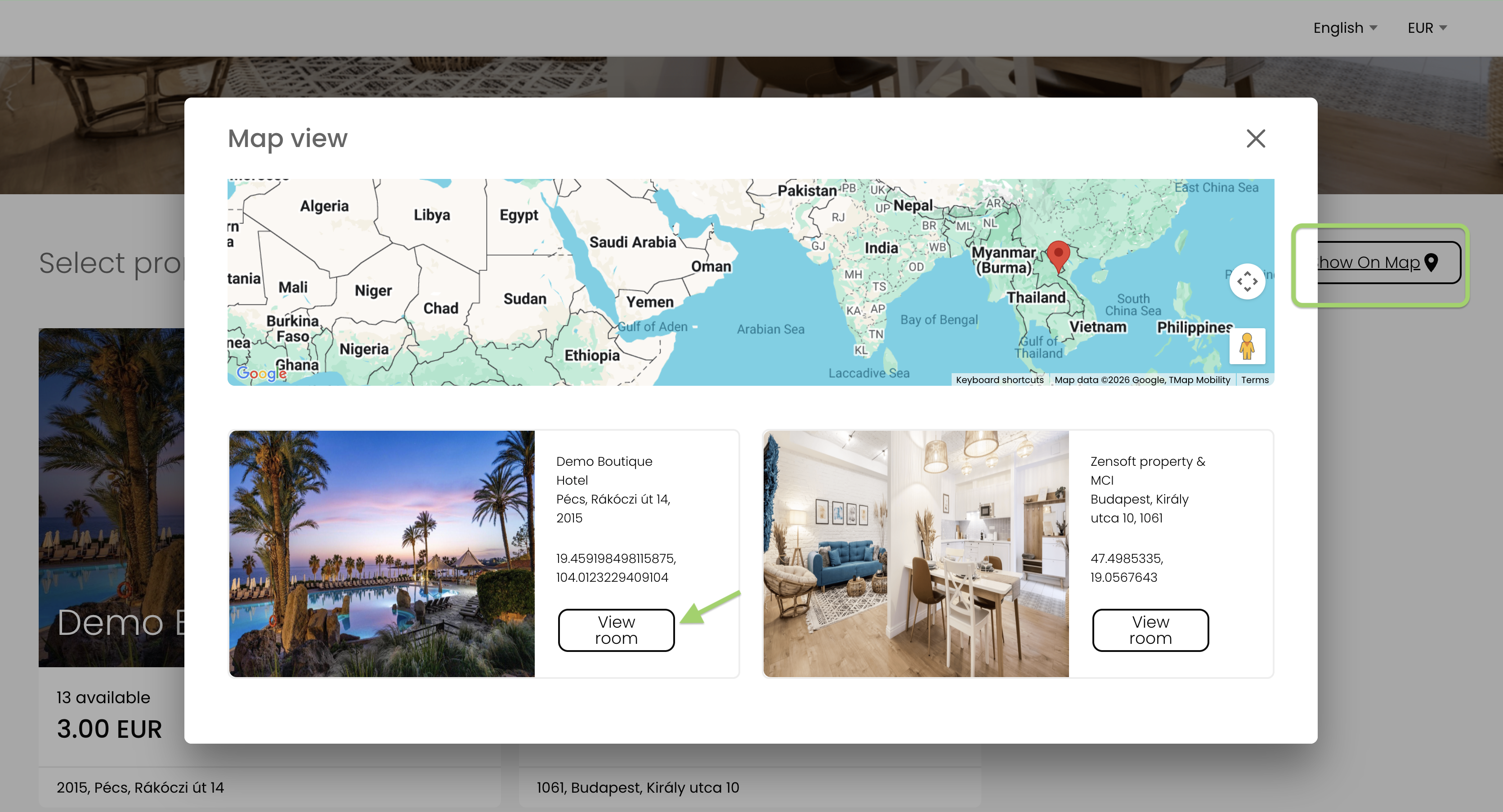
Show on Map Feature
Each property includes a “Show on map” option, which opens the location in Google Maps so guests can easily view where the property is located.
Clicking “View room” redirects guests to the individual Booking Engine of that property.
Why Use the Multi-Property Booking Engine?
The MIBE helps you:
-
Increase visibility across all your properties
-
Improve guest experience with easier comparison
-
Drive more bookings through a single entry point
-
Reduce friction in the booking journey