
Introduction
Optimise your room pricing effortlessly with the SabeeApp two-way integration with Lighthouse Pricing Manager. This integration allows you to base your rates on one of the hospitality industry’s most comprehensive and reliable data sets.
Lighthouse generates intelligent rate recommendations based on your pricing rules, occupancy levels, competitor rates, and market demand. You can review detailed recommendation breakdowns in a clear, user-friendly dashboard and apply changes with a single click. For a fully hands-off approach, enable Autopilot to automatically send optimized rates directly to your PMS—freeing up more time to focus on your guests.
Supported Features
- Optimized price recommendations updated hourly for the next 365 days
- Transparent pricing based on your rules, occupancy, competitors, and local events
- Direct price synchronization with your PMS
- Autopilot option for fully automated rate updates
- Intuitive dashboard designed specifically for independent hoteliers
- Pricing powered by one of the most diverse and trusted data sets in the hospitality industry
- Outstanding customer support, rated great or amazing by 98.2% of customers
Pricing
Lighthouse Pricing Manager is available via subscription. Pricing is managed directly by Lighthouse.
Connection Details
- Connection cost: Free
- Eligibility: No restrictions on which provider can initiate the connection
How to Connect
Follow the steps below to connect Lighthouse Pricing Manager with SabeeApp.
1. Start the connection
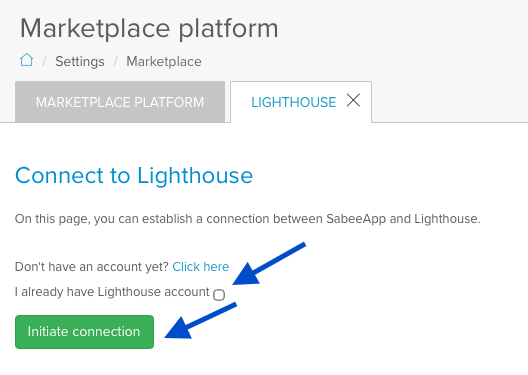
Log in to SabeeApp, go to Marketplace, and select Lighthouse.
Click Initiate Connection, then select I already have Lighthouse account and click Initiate connection again.
2. Confirm the connection
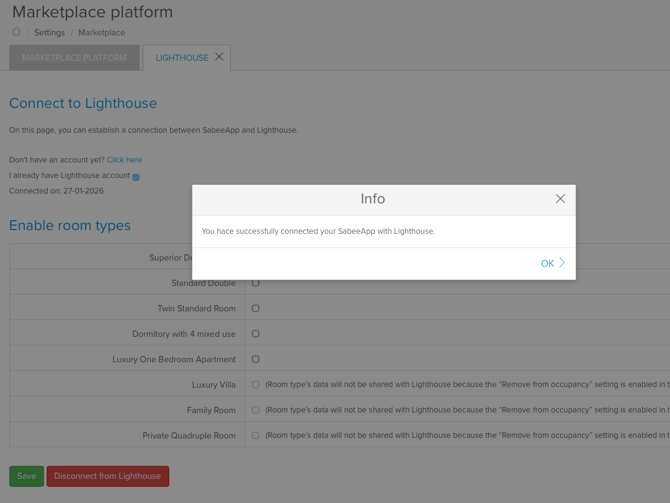
Once the connection is established, you will see a confirmation pop-up in SabeeApp. At the same time, an automated email is sent to Lighthouse to notify them of the connection.
3. Enable room types
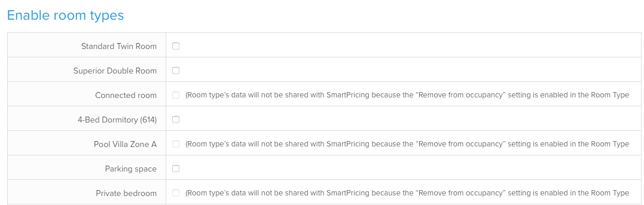
After confirming the connection, select which room types you want Lighthouse to manage:
- Tick the checkboxes next to the relevant room types.
- Click Save at the bottom of the page.
This completes the setup on the SabeeApp side. Lighthouse will now start generating price recommendations based on your configuration. You can apply these recommendations manually or enable Autopilot for automatic rate updates.
Next Steps
After completing the connection:
- Review your pricing rules and preferences in Lighthouse
- Confirm that room types are correctly mapped
- Decide whether to apply prices manually or enable Autopilot
If you need assistance during setup or have questions about pricing behavior, please contact Lighthouse Support.
How to Disconnect
1. Start the disconnection
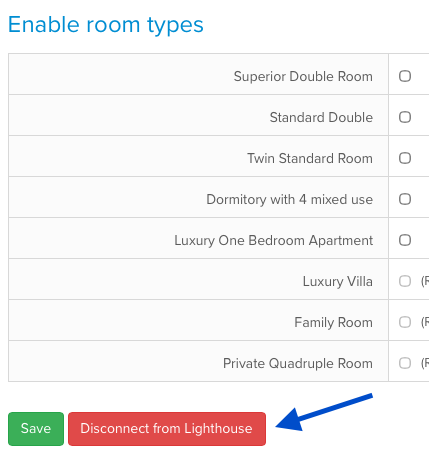
In SabeeApp, go to Marketplace → Smartpricing → Check configuration. Scroll to the bottom of the page and click Disconnect from Lighthouse.
2. Automated email notification
After disconnecting, an automated email will be sent to Lighthouse to confirm that the integration has been disabled.