
✅ Step 1 — Get Your GA4 Measurement ID
- Log in to Google Analytics.
- Click Admin (bottom left).
- Under Property, click Data Streams.
- Select your Web data stream.
- Copy the Measurement ID (format:
G-XXXXXXXX).
You will need this ID for SabeeApp Marketplace Connection with GA4.
✅ Step 2 — Add Your GA4 ID in SabeeApp
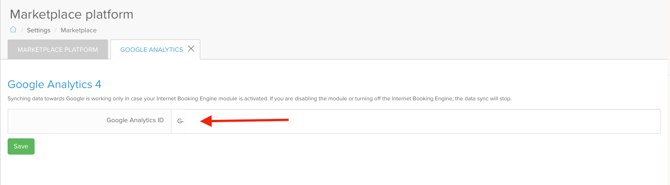
- Go to Settings → Marketplace → Google Analytics in SabeeApp.
- Click on Initiate connection.
- Paste your GA4 Measurement ID (
G-XXXXXXX). - Click Save. The system will validate the ID and confirm the connection.
✅ When GA4 or GTM is enabled in SabeeApp, the following data is automatically included in the data layer for bookings:
- ecomm_prodid — Reservation Code for individual bookings or Group ID for group bookings
- ecomm_totalvalue — Total amount payable (room price, taxes, city tax, extras)
- ecomm_pagetype — Always set to
product
This data allows accurate conversion tracking for reservations.
✅ Step 3 — Configure Cross-Domain Tracking in GA4
- In GA4, go to Admin → Data Streams → Web stream.
- Scroll to Configure tag settings → Configure your domains → Add condition.
- Add the two domains:
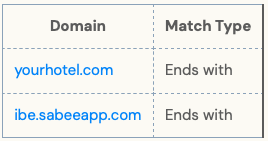
This allows GA4 to maintain the same session between domains.
✅ Step 4 — Install GTM on Your Website (NOT GA4 code)
To avoid conflicts, your website must load only the GTM container, not GA4 directly.
✔ Install on your website:
- GTM container snippet (GTM-XXXXX)
❌ Do NOT install:
- Any
<script>usinggtag/js?id=G-XXXX - Any manually added GA4 tracking code
- Any GA4 plugin or CMS integration that injects gtag.js
Removing hard-coded GA4 ensures cross-domain linking works correctly.
✅ Step 5 — Set Cross-Domain Linking in GTM
In Google Tag Manager:
- Go to Tags → New → GA4 Configuration
- Paste your Measurement ID
- Click Fields to Set → Add Row
Add:
| Field Name | Value |
|---|---|
| allow_google_signals | true |
| link_domain | yourwebsite.com, ibe.sabeeapp.com |
- Trigger: All Pages
- Save & Publish
✅ Step 6 — Add a Conversion Linker Tag (Required)
- GTM → Tags → New → Conversion Linker
- Trigger: All Pages
- Save
This ensures proper first-party cookie attribution.
✅ Step 7 - Create the Booking Event in GA4
Steps:
- Go to GA4 → Admin → Events
- Click Create Event
- Click Create
- Add a rule like this:
-
Event name:
reservation_complete(or any name you prefer) -
Matching conditions:
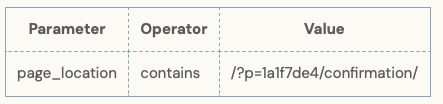
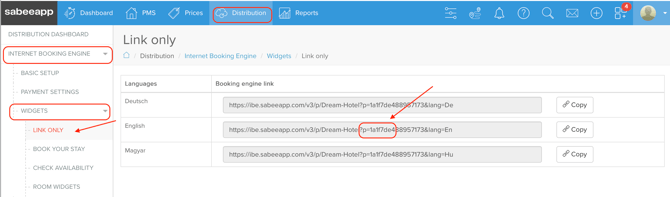
?p= To get the link go to your SabeeApp Account - Distribution - Internet Booking Engine - Widgets - Link Only. Please make sure to copy the part of the Booking Engine link starting from "?p=" and the following 8 characters.
-
Save it.
-
Then go to Events → Manage Conversions and mark reservation _complete as a conversion.
✅ Step 8 — Prevent Referral Breaks in GA4
- GA4 → Data Stream → Configure Tag Settings → List Unwanted Referrals
- Add:
ibe.sabeeapp.com
- Save your settings.
This prevents the booking engine from appearing as a referral in GA4 reports, preserving the original traffic source.
✅ Step 9 — Test the Complete Flow
Use GA4 DebugView and:
- Start on yourwebsite.com
- Continue to ibe.sabeeapp.com
- Complete a test booking
Check for:
- Continuous session
reservation_completeevent- Booking parameters