
To correctly track reservations across your website and the SabeeApp Booking Engine (IBE), you need to set up cross-domain tracking in GA4. This ensures users moving between domains (e.g., yourhotel.com → ibe.sabeeapp.com) remain in the same session and marketing attribution is preserved.
Note: Google Tag Manager (GTM) on SabeeApp is optional. GA4 events will still track bookings if you only enter your GA4 Measurement ID in SabeeApp.
✅ Step 1 — Get Your GA4 Measurement ID
- Log in to Google Analytics.
- Click Admin (bottom left).
- Under Property, click Data Streams.
- Select your Web data stream.
- Copy the Measurement ID (format:
G-XXXXXXXX).
You will need this ID for both your website and SabeeApp Marketplace Connection with GA4.
✅ Step 2 — Install the GA4 Tag on Both Domains
A. On Your Own Website
Ask your webmaster or developer to add the following code before the closing </head> tag:
<!-- GA4 -->
<script async src="<https://www.googletagmanager.com/gtag/js?id=G-XXXXXXX>"></script>
<script>
  window.dataLayer = window.dataLayer || [];
  function gtag(){dataLayer.push(arguments);}
  gtag('js', new Date());
  gtag('config', 'G-XXXXXXX');
</script>
Replace G-XXXXXXX with your GA4 Measurement ID.
B. In SabeeApp for the Booking Engine
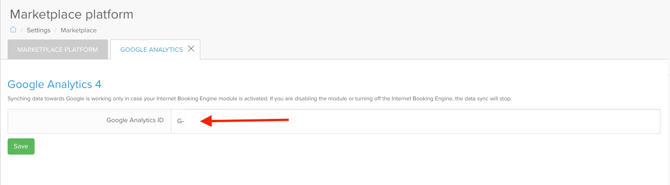
- Go to Settings → Marketplace → Google Analytics in SabeeApp.
- Click on Initiate connection.
- Paste your GA4 Measurement ID (
G-XXXXXXX). - Click Save. The system will validate the ID and confirm the connection.
✅ When GA4 or GTM is enabled in SabeeApp, the following data is automatically included in the data layer for bookings:
- ecomm_prodid — Reservation Code for individual bookings or Group ID for group bookings
- ecomm_totalvalue — Total amount payable (room price, taxes, city tax, extras)
- ecomm_pagetype — Always set to
product
This data allows accurate conversion tracking for reservations.
✅ Step 3 — Configure Cross-Domain Tracking in GA4
- In GA4, go to Admin → Data Streams → Web stream.
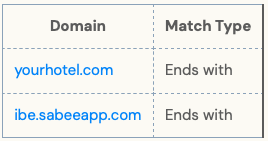
- Scroll to Configure tag settings → Configure your domains → Add condition.
- Add the two domains:
✅ Step 4 - Create a Custom Event in GA4 (NO GTM REQUIRED)
Steps:
- Go to GA4 → Admin → Events
- Click Create Event
- Click Create
- Add a rule like this:
- Event name:
reservation_complete(or any name you prefer) - Matching conditions:
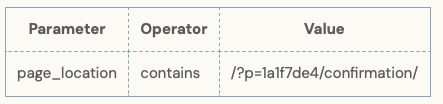
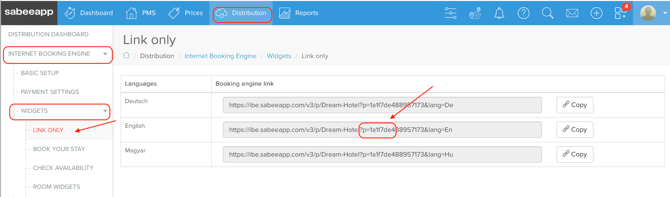
?p= To get the link go to your SabeeApp Account - Distribution - Internet Booking Engine - Widgets - Link Only. Please make sure to copy the part of the Booking Engine link starting from "?p=" and the following 8 characters.
6. Then go to Events → Manage Conversions and mark
reservation_complete as a conversion.✅ Step 5 — Prevent Referral Breaks in GA4
- Inside the same Web stream settings, scroll to List unwanted referrals.
- Add:
ibe.sabeeapp.com
- Save your settings.
This prevents the booking engine from appearing as a referral in GA4 reports, preserving the original traffic source.
Optional — Step 6 & 7: Using Google Tag Manager (Advanced)
- You do not need GTM on SabeeApp for GA4 tracking to work.
- GTM can be used if you want advanced debugging or custom tags.
- To set up GTM on your website:
- Log in to Google Tag Manager.
- Go to Tags → New → Tag Type → GA4 Configuration.
- Enter your GA4 Measurement ID.
- Scroll to Fields to Set → Add Row and enter:
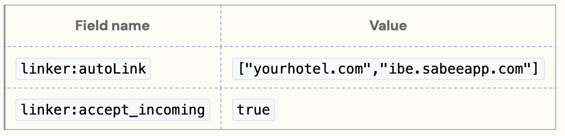
5. Set the trigger to All PagesThese settings preserve the user’s session across both domains.
6. Save and Publish.
✅ Step 7 — Add a Conversion Linker Tag in GTM
- Go to Tags → New → Tag Type → Conversion Linker.
- Set the trigger to All Pages.
- Save.
The Conversion Linker ensures that reservations and other conversions are attributed correctly.
GTM will show “Not Tagged” for SabeeApp unless it is installed there. This is normal and does not affect GA4 tracking.
✅ Step 8 — Testing & Debugging with GA4
- Go to GA4 → DebugView.
- Navigate through your booking funnel on the hotel website → SabeeApp.
- Make a test reservation.
- Confirm the following events are recorded:
page_viewon both domainsreservation_complete(or equivalent)ecomm_prodid,ecomm_totalvalue,ecomm_pagetype
- Check that the session persists across domains.
Once verified in DebugView, conversion reports will populate in GA4 within 24–48 hours.
✅ Step 9 — Verify Conversion Events
- In GA4, go to Events → Manage Conversions.
- Make sure your reservation event is marked as a conversion.
- If needed, toggle it from All Events → Mark as conversion.
🎉 Your GA4 Cross-Domain Tracking is Now Fully Set Up
- Users moving between your website and SabeeApp remain in the same session.
- Marketing attribution is preserved across domains.
- Booking conversions, including reservation code and total value, are tracked accurately in GA4.