
This article explains how to configure property information, regional settings, security controls, and general system preferences in Cash Drawer. It includes guidance for both owners and operators.
Property Settings in Cash Drawer
Property settings let you manage key information about your business in Cash Drawer, including:
- Property name
- Location details
- Default currency
- Security settings
Property details—such as ID, location, and default currency—are automatically fetched from SabeeApp. When you first log in to Cash Drawer, this information is pre-populated for you.
Configure Regional Settings
Default Currency
The default currency is automatically imported from SabeeApp and is used throughout forms and transactions. You can override it for individual transactions if needed.
Note: Changing the default currency does not affect existing transactions.
To set or change the default currency:
- Go to the Default Currency dropdown.
- Select your primary operating currency.
Security settings
Security settings allow the owner to generate a PIN code for situations where additional authorization is required.
PIN code management
Each transaction, transfer, or exchange is automatically dated and linked to the user who created it. Most transaction details are set when the transaction is recorded.
By default:
- Owners can record and edit transactions, generate PIN codes, and provide temporary access to operators.
- Operators can record transactions but cannot edit saved transactions without an owner-issued PIN.
Set or update the owner PIN code
Owners use a PIN to authorise edits to saved transactions.
To set or update your PIN:
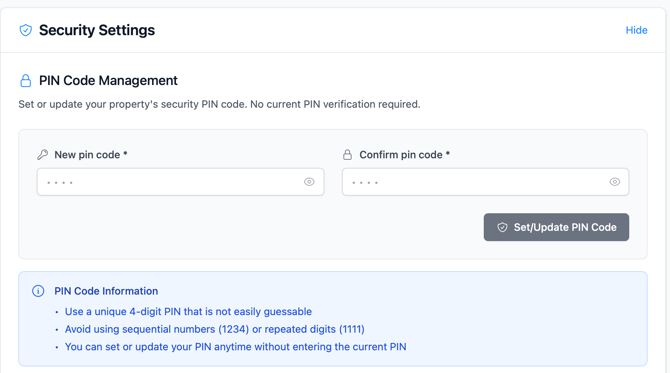
- Go to Settings → Property Settings → Security Settings
- Locate the PIN Code Management section
- Enter a 4-digit PIN in New PIN code
- Re-enter the same PIN in Confirm PIN code
- Click Set/Update PIN
A confirmation message appears once the PIN is saved. Owners can change this PIN at any time by repeating these steps.
When a PIN code is required
A PIN code is required when attempting to:
- Change a transaction’s category
- Edit the amount or currency
- Modify any other transaction details
- Perform any action that displays an Authorization Code required message
Operator workflow example:
- An operator tries to edit a saved transaction.
- The system prompts for an owner PIN.
- The operator requests a temporary PIN from the owner.
- The operator enters the PIN to make the changes.
Tip: For more information on how PINs are used and operator permissions, see User Profile and Permissions in Cash Drawer.
PIN best practices
- Use a memorable but not obvious PIN
- Do not share your PIN with others
- Change it regularly (every few months)
- Avoid common sequences such as
1111or1234 - Use a combination of numbers you can easily remember
General system settings
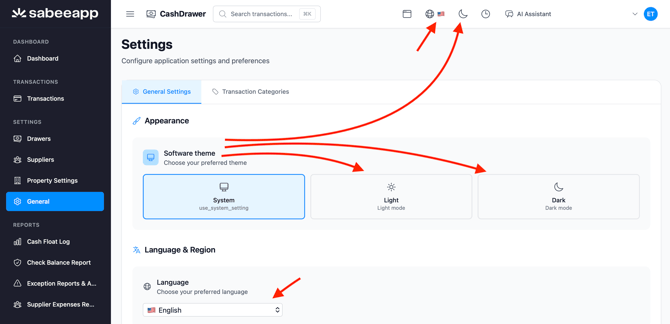
General settings allow you to customise the interface and key system preferences. These settings are located at Settings → General and are also accessible via icons in the main header.
Language and display settings
You can customize how Cash Drawer looks and behaves for your account.
- Language – Change the interface language
- Theme – Switch between light and dark modes
Change the interface language
- Click the Language selector in the top-right corner
- Choose your preferred language from the list
- The interface updates immediately
Changes apply only to your account.
Change the theme
- Click the Theme setting
- Select Light Mode or Dark Mode
- The interface updates immediately
Dark mode can help reduce eye strain in low-light environments.